OIDC sessions and revoking AI access
This page covers two things every admin eventually needs: seeing which AI tools your team has connected via sign-in, and cutting off access — for one app, one person, or one credential.
Where to see AI sessions
When team members connect AI tools with Sign in with StackJack, each per-install connection is recorded as a read-only AI session. There are two places to see them, depending on whose you are looking at:
- Your own — the Your AI connections card on the MCP Setup page (
/endpoints), in the Connect section. It is a read-only self-view: it shows only the sessions you created (and the shared-apps you authorized), never another member's, and has no management controls. - Every member's — the Team page (
/team). Expand a member's row (the chevron) to see that member's connections, grouped into Member credentials, Connected apps, and AI sessions. Sessions belonging to a removed member or the primary owner roll up into the managers-only Unattributed connections area below the members grid. This is where an admin manages the whole team's connections.
What an AI-session row shows:
- The AI tool's name (as it registered itself), with a DCR (OIDC) badge.
- An Active badge while the connection is live. Inactive (revoked) sessions are hidden by default — tick Show inactive to reveal them; they are retained for your records, not deleted.
- Last-used time (Eastern Time) and total tool-call count.
Three things to know about AI-session rows:
- They are informational only — there is no revoke button on a session. Read on for the actual revocation levers.
- Connections appear only after their first tool call. The list is built from usage activity, so a tool that signed in but has not yet called anything is not shown.
- Shared-app (CIMD) connections are separate. They appear — with revoke controls for admins — under Connected apps in the same per-member Team row (and in each user's own Your AI connections self-view, read-only). See Connected Apps.
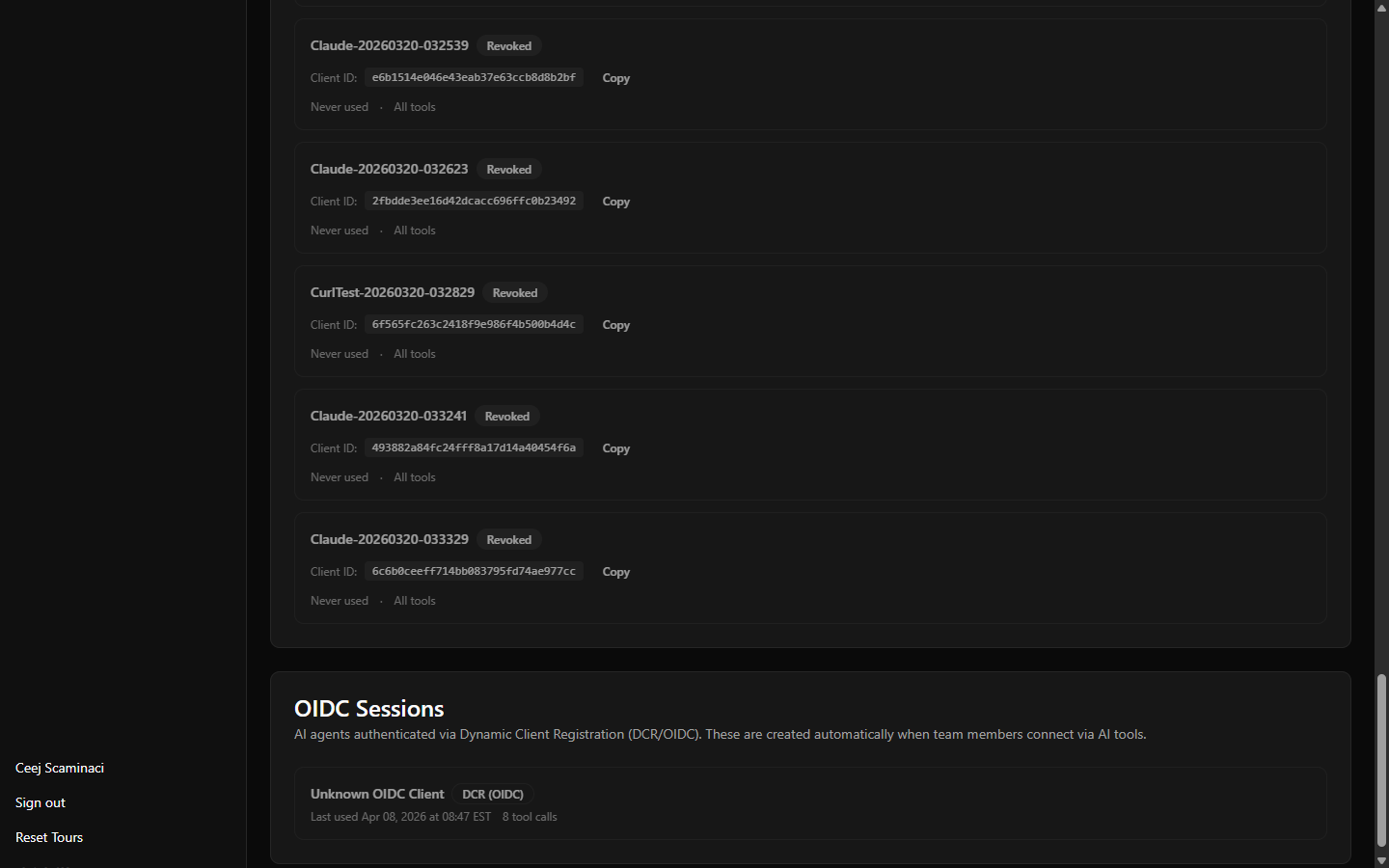 An AI session row showing an active DCR connection with name, badges, last-used time, and tool-call count
How revocation works (read this first)
Signed-in AI tools hold a short-lived access token (1 hour) plus a refresh token that renews it automatically (an idle connection dies after 30 days unused). StackJack does not recall issued tokens — instead, every single request re-verifies access against the current state of your workspace: is the client still active, is the member still active, is the authorization still in place.
The practical consequence: every revocation action below takes effect on the harness's next request — not at token expiry, not after a delay. The only exception is secret rotation (noted below).
Recipe 1: Disconnect one AI app for one user
Applies to shared-app (CIMD) connections — for example an AI product that all your users connect with the same published app identity.
- Open the Team page (
/team). - In Active Members, find that member and expand their row (the chevron on the left).
- Under Connected apps, find the row for the app you want to cut off and select Revoke.
If the person is no longer a team member (or is the primary owner without a member row), their authorizations are in the managers-only Unattributed connections area below the members grid instead — expand it and Revoke there.
Effective on the app's next request; the app also cannot sign that user back in until you Reinstate the row. Full details: Connected Apps.
Note: for per-install (DCR) connections there is no per-app revoke — access is all-or-nothing per member (Recipe 2). If you need finer control for a specific tool, connect it with a dedicated Client ID + Secret instead, which you can revoke individually.
Recipe 2: Cut off a departing or compromised user entirely
- Open the Team page.
- On the member's row, select Revoke Access and confirm ("Their MCP credentials will stop working immediately").
This single action revokes, all at once:
- Their team membership (portal access included).
- Every AI tool they connected via sign-in (per-install and shared-app alike).
- Their personal MCP client credentials and API keys.
- Their personal per-user connector credentials.
Effects on their live connections: the current session gets a 401 on its next request; background token refresh is denied; and if they try to sign in again, they are told their access was revoked and to ask an admin for a new invite.
Owners, co-owners, and Administrators can do this.
Reactivation is not reconnection. If you later Reactivate the member, their membership, credentials, and connector access come back — but their signed-in AI tool connections do not. Each AI tool must sign in again (tools prompt for this automatically the next time they are used).
Recipe 3: Kill a manual credential or API key
- Open MCP Setup (
/endpoints) → AI client credentials (the Client IDs & API keys card). - Select Revoke on the credential — immediate and permanent across every usage form (Basic header, API-key header, OAuth tokens minted from it, refresh).
Or select Rotate Secret if the tool should keep existing with a new secret. Rotation warning: any OAuth access token already minted with the old secret keeps working for up to 1 hour. Rotation invalidates the secret; revocation invalidates the client; both cut off token refresh.
Recipe 4: Block an AI product entirely
If you need a whole AI product blocked at the platform level (every user, not just yours), contact StackJack support (support@stackjack.io). StackJack operates a product-wide disable switch for shared-app harnesses; when applied, the app is refused for all users on its next request and cannot sign anyone back in.
Timing reference
| Action | Live connection | Background refresh | New sign-in |
|---|---|---|---|
| Revoke member (Team page) | Stops next request | Denied | Denied — "ask your admin for a new invite" |
| Revoke app authorization (Team → member row → Connected apps) | Stops next request | Denied | Denied until reinstated |
| Revoke manual client / API key | Stops next request | Denied | n/a |
| Rotate secret / API key | Old tokens live up to 1 h | Unaffected (client still active) | Old secret dead immediately |
| StackJack disables an app product | Stops next request, all users | Denied | Denied |
What you cannot do (so you do not go looking for it)
- Revoke from an AI-session row. Sessions are read-only wherever they appear (your own self-view and the Team member rows); the lever for signed-in connections is member revocation (or Connected apps on the member's Team row for shared apps).
- Call a token-revocation API. There is none — enforcement is per-request re-verification, which is stronger: no lever waits for a token to expire.
- Rely on "disconnect" inside the AI tool. Removing the server inside the tool stops the tool from calling, but revokes nothing on the StackJack side; the unused connection simply ages out after 30 days. If you need server-side certainty, use the recipes above.