Connect ConnectWise PSA (Manage)
ConnectWise PSA (formerly ConnectWise Manage) is a professional services automation platform for tickets, companies, contacts, agreements, projects, and billing. Connecting it to StackJack lets your AI assistant work with that data through StackJack's tool catalog. Tool results are passed through as raw ConnectWise API responses — no reformatting or filtering.
The ConnectWise PSA integration is StackJack's largest tool family — roughly 780 tools (prefix cw_) spanning:
| Family | Examples of what the AI can do |
|---|---|
| Service desk | Service tickets, ticket notes, boards, service configurations and templates, workflows |
| Companies & contacts | Companies, company sites, company notes, contacts |
| Configurations | Configurations (assets) and their details |
| Projects | Projects, phases, project tickets, project notes |
| Sales & marketing | Opportunities and sub-resources, sales activities, sales orders, marketing |
| Procurement | Catalog items, products, purchase orders, RMAs, warehouses, adjustments, reference data |
| Finance | Agreements and sub-resources, invoices, expenses, accounting |
| Time | Time entries, timesheets, stopwatches, schedules |
| Members & system | Members, system info and utilities, knowledge base |
| Analytics & discovery | Cross-domain summaries, analytics, and discovery helpers built on the above |
Tool availability depends on your ConnectWise connector plan tier — the in-portal tool selector and the Permissions page (/permissions) show exactly which tools your plan includes.
How authentication works
StackJack authenticates with ConnectWise API-member keys (HTTP Basic authentication built from your Company ID + Public Key + Private Key) plus the clientId header carrying a Developer Client ID. This is a single shared credential for your whole team — ConnectWise attributes all activity to the API member you create. There is no per-user sign-in for this connector.
Prerequisites in ConnectWise
You need two things from the ConnectWise side: a Developer Client ID (identifies StackJack's integration to ConnectWise) and an API member key pair (grants access to your data).
- Register a Developer Client ID. Sign up at the ConnectWise Developer Network (
developer.connectwise.com) and register a client application to obtain a Client ID (a GUID). ConnectWise requires this header on every API request. - Create an API member. In ConnectWise, go to System > Members > API Members and create a new API member. Assign it a security role whose permissions match the tools you want StackJack to use — the API member can never do more than its role allows.
- Generate API keys. On the API member's API Keys tab, click + to generate a Public Key / Private Key pair. Save the private key immediately — ConnectWise shows it only once.
ConnectWise permissions
The API member's security role controls what StackJack can access:
| Area | Access used by StackJack tools |
|---|---|
| Service Desk | Service tickets, time entries, notes (read/write) |
| Companies | Companies, contacts, sites (read/write) |
| Configurations | Configurations/assets (read/write) |
| Projects | Projects, phases, tickets (read/write) |
| Sales | Opportunities, activities (read/write) |
| Finance | Invoices, agreements (read) |
| System | Members, info (read) |
Tip: the StackJack Permissions page (/permissions) maps every StackJack tool to the access area it needs (for example read:service / edit:service), so you can build a least-privilege security role covering exactly those modules.
Set up the connector in StackJack
- In the StackJack portal, go to Connectors and find the ConnectWise PSA card.
- Optional: click How To Connect for the in-portal version of this guide.
- Click Configure.
- Fill in the fields (all are required):
| Field | What to enter |
|---|---|
| Region | North America, Europe, Australia, or South Africa (auto-fills the *.myconnectwise.net API URL), or Self-Hosted to enter a custom server URL |
| Company ID | Your ConnectWise company ID (the one you type on the ConnectWise login screen) |
| Public Key | From the API member's key pair |
| Private Key | From the API member's key pair (shown once in ConnectWise) |
| Developer Client ID | The GUID from your ConnectWise Developer Network registration |
- Click Save.
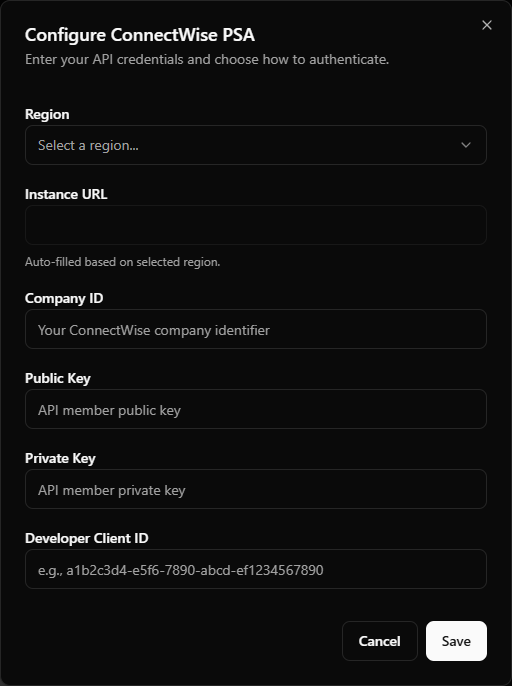 StackJack ConnectWise PSA configure dialog showing the region dropdown and the four credential fields
What happens when you save
- Your credentials are stored in Azure Key Vault — never in the StackJack database.
- A Free-tier connector subscription is created automatically if you don't already have one (upgrade any time from the connector card).
- StackJack immediately test-calls your ConnectWise instance (a system-info request). Success shows a confirmation toast; a failed or timed-out test shows a warning toast but does not block the save — StackJack retries validation in the background.
- Credentials are re-validated automatically in the background. After 3 consecutive definitive failures the credential is auto-disabled, tool calls stop, and the tenant owner is emailed. The connector card then offers Re-enable and Update Credentials; an invalid-but-enabled card offers Re-test.
Region / instance URL guidance
Pick the region that matches where your ConnectWise instance is hosted — the API keys only work against the correct regional API host. If you run ConnectWise on your own servers, choose Self-Hosted and enter your server's base URL. The instance URL field is read-only for the cloud regions; StackJack fills it from the region you select.
Per-user connections
Not supported for this connector. ConnectWise PSA uses one shared API-member credential for the whole team; activity in ConnectWise is attributed to that API member. If per-user attribution matters for your workflows, note it in the API member's naming/auditing conventions.
Limits and behavior
| Behavior | Detail |
|---|---|
| Request pacing | StackJack paces outbound ConnectWise requests to 100 requests per minute per organization to protect your instance. StackJack itself imposes no per-minute limit on your MCP usage — your monthly plan call cap is the enforcement point. |
| Page size | List tools return at most 200 records per page (a StackJack-side cap); use page parameters to fetch more. |
| Query syntax | List tools accept ConnectWise conditions, childConditions, orderBy, and fields parameters — the same query language the ConnectWise REST API uses. |
| Request timeout | Up to 2 minutes per request. |
Troubleshooting
| Symptom | Likely cause and fix |
|---|---|
| 401 Unauthorized on validation or tool calls | Company ID, Public Key, or Private Key is wrong — or the API member was disabled in ConnectWise. Regenerate keys on the API member and update the connector. |
| Errors mentioning the client ID | The Developer Client ID is missing, mistyped, or was revoked at the ConnectWise Developer Network. Verify the GUID and re-save. |
| Validation fails with a connection error | Wrong region selected (keys are region-specific), or a Self-Hosted URL that isn't reachable from the internet. |
| Tools return 403 / "access denied" | The API member's security role doesn't cover that module. Adjust the role in ConnectWise; use the StackJack Permissions page to see which permission each tool needs. |
| Connector card shows Disabled | 3 consecutive validation failures auto-disabled the credential. Fix the cause shown in the card's error details, then click Re-enable (StackJack validates against ConnectWise before re-enabling) or Update Credentials. |
Disconnecting: the Disconnect button deletes the stored credentials from Key Vault and immediately stops all ConnectWise tool calls. Note that disconnecting does not cancel a paid connector subscription — cancel the plan separately from the connector card if you no longer want it.