Inviting teammates
The Team page is where you bring coworkers into your StackJack account. An invite creates their sign-in identity, emails them setup instructions, and — the moment they first sign in — turns into an active team membership with the tools you chose. There is no separate "accept invite" screen.
Before you start
- You need the Owner, Co-owner, or Administrator role (see Team roles).
- Your account needs at least one active connector subscription. If you have none, the Team page shows a "Subscription Required" card that links you to the Connectors page first.
Send an invite
- In the left sidebar, select Team.
- In the Invite a Team Member card, enter the teammate's Email, First Name, and Last Name.
- (Optional) Expand Tool Permissions (optional) to restrict which tools their AI assistant may use. The default selection is all connector tools available on your current plans — leave it as is to grant broad access, or trim it for a scoped role. (StackJack's own platform tools, such as filing support tickets, are always available to a connection and aren't part of this selection.)
- Select Send Invite.
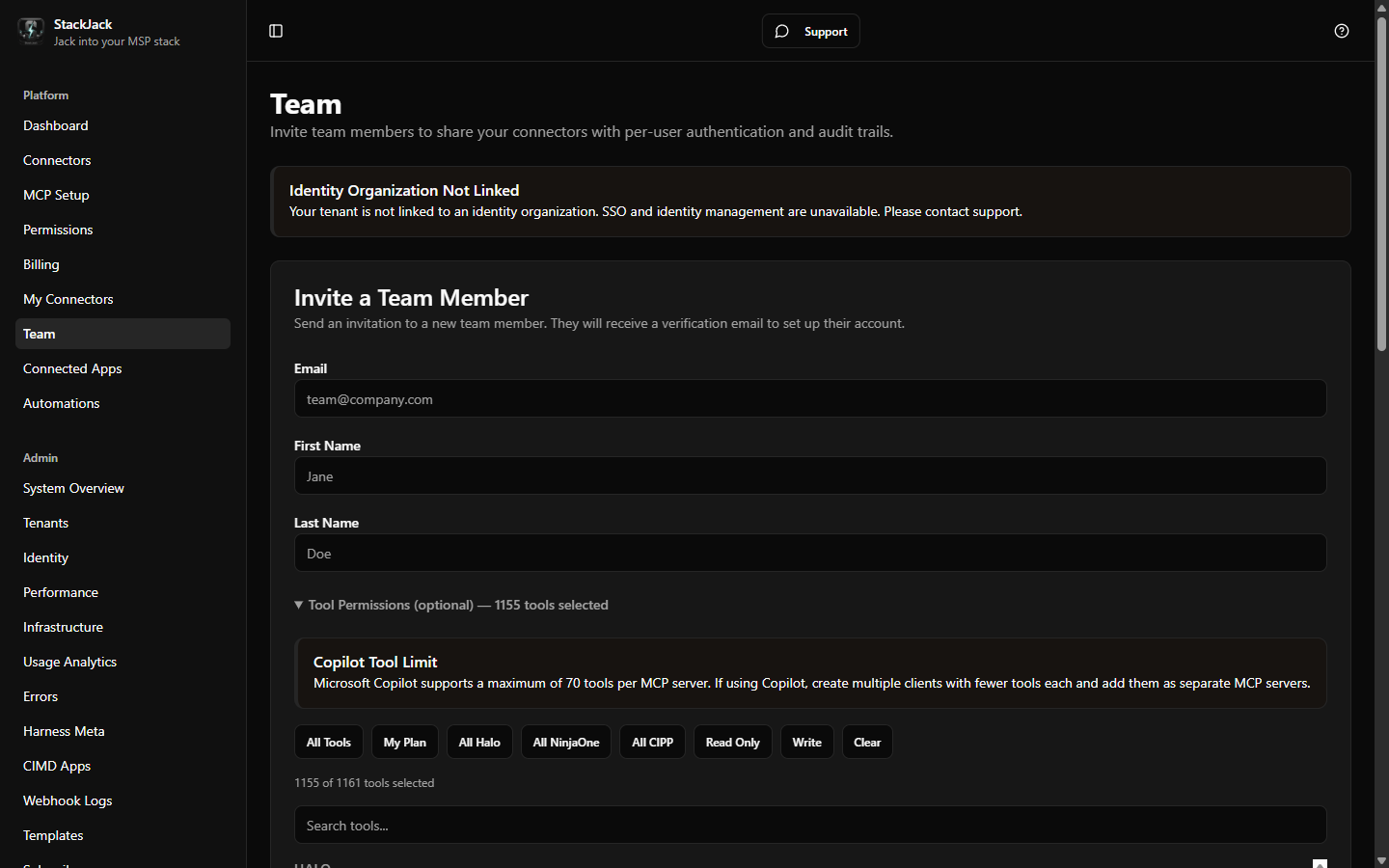 The Team page invite form with the Tool Permissions section expanded showing the tool selector
What happens behind the scenes:
- A sign-in identity is created for that email inside your organization.
- A password-setup email is sent so they can choose a password (this email comes from the identity service, so it may arrive from a
zitadel.cloudaddress). - A StackJack invite email is sent letting them know they've been added.
- A pending invite appears in the Pending Invites list.
If the setup email could not be sent, the portal tells you immediately — the invite still works, and your teammate can use Forgot password on the sign-in page as a full substitute for the setup email.
What your teammate does
- They open the password-setup email and choose a password.
- They go to the portal and sign in (multi-factor authentication enrollment is required on first sign-in — see Sign-in, MFA, and sessions).
- That's it. The invite is accepted automatically at first sign-in — their membership activates with the tools you assigned, and the invite disappears from Pending Invites.
Each invite is tied to the specific identity that was created for that email address, so it cannot be consumed by a different account that happens to use the same address.
Invite expiry, revoking, and resending
| Situation | What to do |
|---|---|
| Invite still pending, not yet expired | Nothing — the invitee just needs to sign in. Sending the invite again from the Team page refreshes the tool assignment; the change applies at their next sign-in. |
| Invite expired (invites last 7 days) | Send a new invite from the Team page. There is no separate "extend" button. |
| Invitee never got the password-setup email | Check the Unlinked Identity Users card at the bottom of the Team page — users still in "Pending Setup" state have a Resend Setup Email button. Alternatively, tell them to use Forgot password on the sign-in page. |
| You want to cancel an invite | In Pending Invites, select Revoke and confirm. |
Troubleshooting invites
- "Domain not verified" banner on the Team page. If your email domain hasn't been verified with the identity service yet, automatic sign-in routing for your domain is inactive. Invitees should always use the link in their invite/setup email rather than navigating to the sign-in page cold.
- The invitee already has an account elsewhere. Sign-in identities are unique across all of StackJack. If the person's email already exists in another organization, StackJack usually resolves this automatically; if the invite fails with an error asking you to contact support or mentioning reconciliation, that refusal is deliberate — email support@stackjack.io and the StackJack team will relocate the identity safely.
- The invitee signed in before the invite existed (for example, they connected an AI assistant on their own first). They won't consume the invite the normal way — they'll appear on your Team page as a pending, self-registered member instead. See Approving self-registered members.
Adding someone who already has a sign-in identity
If a person already exists in your organization's identity directory but isn't on your StackJack team (they show up in the Unlinked Identity Users card), you don't need an email invite: select Add to Team, optionally scope their tools, and they become a member immediately.