Managing MCP client credentials and API keys
The Client IDs & API keys card — in the AI client credentials section at the bottom of the MCP Setup page (/endpoints) — is where you create and manage machine credentials for AI tools and automation platforms that cannot use browser sign-in. Each credential shows as its own row with a Create Client and Create API Key button in the card header.
Who can manage credentials: the account owner, co-owners, and Administrators. Members can view the page, but the create/edit/rotate/revoke actions are hidden from them.
The credentials list
Each credential appears as its own row showing:
| Element | Meaning |
|---|---|
| Name | The label you gave it at creation |
| Active / Revoked badge | Whether the credential still works |
| API Key badge | Marks sjk_ API keys (absent for Client ID + Secret clients) |
| Client ID (with copy button) | The public identifier — safe to share, useless without the secret |
| Last used | Timestamp of the most recent call (shown in Eastern Time), or "Never used" |
| Tool count | "All tools" or "N tools" — the tool restriction applied to this credential |
The Edit Tools, Rotate Secret, and Revoke actions appear on each active row for users who can manage credentials.
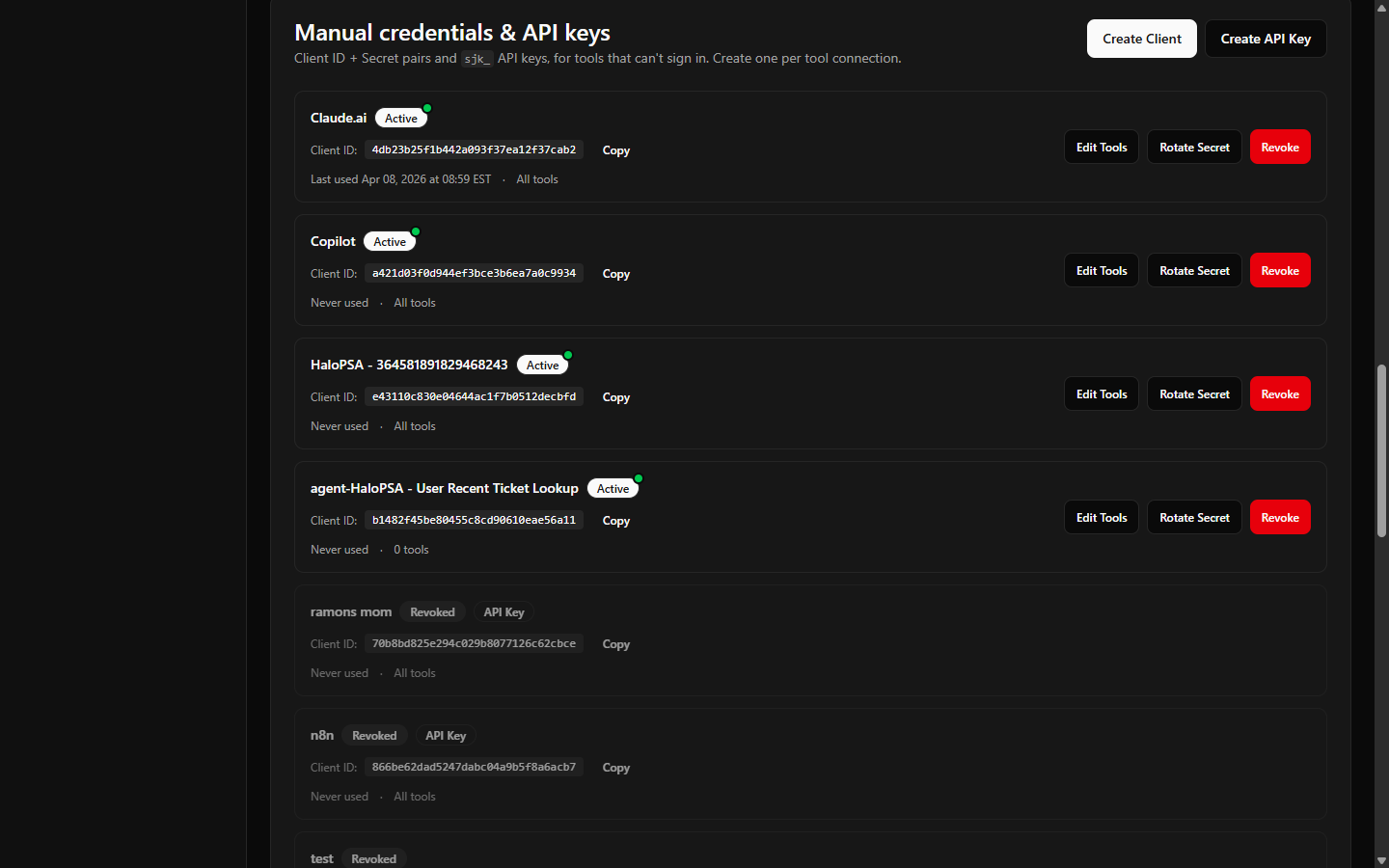 The Client IDs & API keys card with one active client row showing badges, Client ID, last-used time, and the action buttons
Create a Client ID + Secret
- Open MCP Setup and select Create Client.
- Step 1 — Name it. Use something that identifies the tool and purpose (for example "Cline — Alice's laptop").
- Step 2 — Pick allowed tools. The tool selector defaults to every connector tool your plans include. Trim the selection if the credential should be narrower. (StackJack platform tools, such as the support-ticket tools, are always available to any connection and aren't part of this selection.)
- Select Create. A Client Created dialog shows the Client ID and the secret with copy buttons.
- Copy the secret now. It is displayed this one time only — it is stored as a one-way hash and can never be shown again. If you lose it, the only recovery is rotation.
The tool then authenticates with an HTTP Basic header:
Authorization: Basic <base64 of CLIENT_ID:CLIENT_SECRET>
Create an API key
API keys are single-value credentials (sjk_...) for automation platforms (n8n, Make, Power Automate, Zapier, webhooks).
- Select Create API Key.
- Step 1 — Name it and accept the risk. Enter a name (for example "n8n Automation"), read the security considerations, then type the phrase "I accept the risk" — you cannot continue until both are done. The acknowledgment is recorded (who accepted, when, and a fingerprint of the key). The guidance to follow:
- An API key grants the same access as a Client ID + Secret in a single copyable value.
- Never commit it to source control; store it in environment variables or a secrets manager.
- Prefer Sign in with StackJack or Client ID + Secret for interactive AI tools.
- Step 2 — Pick allowed tools (same selector as clients).
- The full key is displayed once, with both ready-to-copy usage forms:
X-API-Key: sjk_...Authorization: Bearer sjk_...
Edit a credential's tools
Select Edit Tools on any active row to reopen the tool selector and change what that credential may call. Changes apply to the credential immediately.
Note that a team member using a credential is always limited to the overlap of the credential's tools and their own assigned tools — widening a credential never grants a member tools they were not personally assigned.
Rotate a secret or API key
Rotate when a secret may have been exposed, or when you lost it and need a new one.
- Select Rotate Secret (for API keys, the confirmation again requires typing "I accept the risk").
- Confirm. The old secret stops working immediately.
- The new secret or key is shown once, in the same one-time dialog as at creation. Update the tool with the new value.
Rotation caveat: rotation invalidates the secret, not the client. If the old secret had been used to mint an OAuth access token (the client_credentials flow), that token can continue working for up to 1 hour until it expires. If you need access dead instantly, use Revoke instead. In short: rotation invalidates the secret, revocation invalidates the client.
Revoke a credential
- Select Revoke on the row and confirm. The dialog warns: any AI agents using these credentials will stop working immediately.
- Revocation is immediate and covers every way the credential could be used — Basic auth, API-key headers, OAuth tokens minted from it, and token refresh.
Revocation is permanent: there is no reactivate button in the portal. Revoked rows are hidden by default — the card header shows an N active count badge and, once any credential is revoked, a Show revoked toggle; tick it to reveal the revoked rows (retained with a Revoked badge for your records). If the tool needs access again, create a new credential.
Member credentials (on the Team page)
The credentials on this page are organization-level — shared across your team for tools that can't sign in, and created by you here. There is a separate, second kind: member credentials — the personal Client ID + Secret pairs minted automatically when a team member signs in with their own StackJack account and connects an AI tool on Connectors (/connectors). There is no create step for them.
Member credentials do not appear on this page. On the Team page (/team), expand a member's row in Active Members (the chevron) to see and manage their connections under Member credentials — owners, co-owners, and Administrators can Rotate Secret or Revoke any member's connection there. (If your subscription has lapsed, these move to a standalone Member credentials card on the Team page, so a manager keeps rotate/revoke on connections minted before the lapse.)
A member credential's tool access is shown read-only on that card: it is governed by that member's Edit Tools in the Active Members list (a member-level allowlist whose save applies to every one of that member's credentials at once). Adjust the tools from the member row — see Managing members.
Related pages
- How AI tools authenticate — when to use each credential type.
- OIDC sessions and revoking AI access — the full revocation playbook, including sign-in-based connections.