How Connectors Work
A connector is StackJack's link between your AI assistant and one of the MSP tools you already use — your PSA, RMM, documentation platform, or security product. Once a connector is configured, your AI assistant can call that product's API through StackJack's MCP tools (MCP is the Model Context Protocol — the open standard AI assistants use to call external tools).
StackJack supports 34 connectors:
| Connector | Category | How it authenticates | Per-user sign-in available |
|---|---|---|---|
| Action1 | RMM / patching | API client ID + secret | No |
| Addigy | Apple device management | API token | No |
| Atera | RMM + PSA | API key | No |
| Autotask PSA | PSA | API integration code + username + secret | No |
| CIPP | Microsoft 365 management | Azure AD app registration (6 values) | No |
| Cisco Meraki | Networking / security | API key | No |
| Cisco Umbrella | DNS / web security | API key + secret | No |
| ConnectWise Automate | RMM | Integrator username + password + developer client ID (optional authenticator secret) | No |
| ConnectWise PSA | PSA | Company ID + public/private key + developer client ID | No |
| ConnectWise Sell | Quoting | Access key + API username + password | No |
| CyberCNS (ConnectSecure) | Vulnerability management | Tenant name + client ID + secret | No |
| CyberQP | Privileged access management | API credentials (generated via a one-time browser consent) | No |
| Datto RMM | RMM | API key + secret key | No |
| DefensX | Web & DNS security | Partner API token | No |
| ESET PROTECT | Endpoint security | API user username + password | No |
| Gorelo | RMM + PSA | API key | No |
| HaloPSA | PSA | OAuth sign-in (recommended) or client ID + secret | Yes |
| Hudu | Documentation | API key | No |
| Huntress | Security | API key + secret key | No |
| ImmyBot | Endpoint automation | Microsoft Entra app registration (client ID + secret + tenant) | No |
| intelliGRC | Compliance / GRC | API client ID + secret + tenant ID | No |
| IT Glue | Documentation | API key | No |
| Kaseya Quote Manager | Quoting | API key | No |
| Keeper Security | Password management | API credentials (provisioning / MSP / SCIM, as used) | No |
| Liongard | Attack surface management | Access key + secret | No |
| N-able N-central | RMM | User-API Token (JWT) | Yes |
| NinjaOne | RMM | OAuth sign-in (recommended) or client ID + secret | Yes |
| Pax8 | Distribution / marketplace | API client ID + secret | No |
| Reddit Ads | Advertising | OAuth (your Reddit app ID + secret; an admin authorizes once) | No |
| Sherweb | Distribution / marketplace | API client ID + secret + subscription key | No |
| Slide | Backup & BCDR | API token | No |
| SuperOps | PSA + RMM | API token + MSP subdomain | No |
| Syncro | PSA/RMM | API token | No |
| Telivy | Cyber risk assessment | API key | No |
"Per-user sign-in available" means individual team members can connect with their own vendor identity instead of everyone sharing one credential — see Shared vs Per-User Credentials.
Where your credentials are stored
Connector credentials are the most sensitive data you give StackJack, so they are handled with a strict storage model:
- Secrets live in Azure Key Vault, not in StackJack's database. When you save a connector, the API keys and secrets you enter are written to a dedicated secret in Azure Key Vault. StackJack's database stores only a reference to that secret — never the secret itself.
- Every tenant's credentials are isolated. Each secret is scoped to your tenant (and, for per-user connections, to the individual team member). One tenant's credentials are never used to serve another tenant's requests.
- Secrets are never displayed again. After you save, the portal never echoes a secret back — not in the configure dialog, not in any admin view. When you edit a connected card, secret fields are blank; you either enter a new value or, for some connectors, leave the field blank to keep the current value.
- Deleting is real. Disconnecting a connector deletes the stored secret from Key Vault (see Disconnecting a Connector).
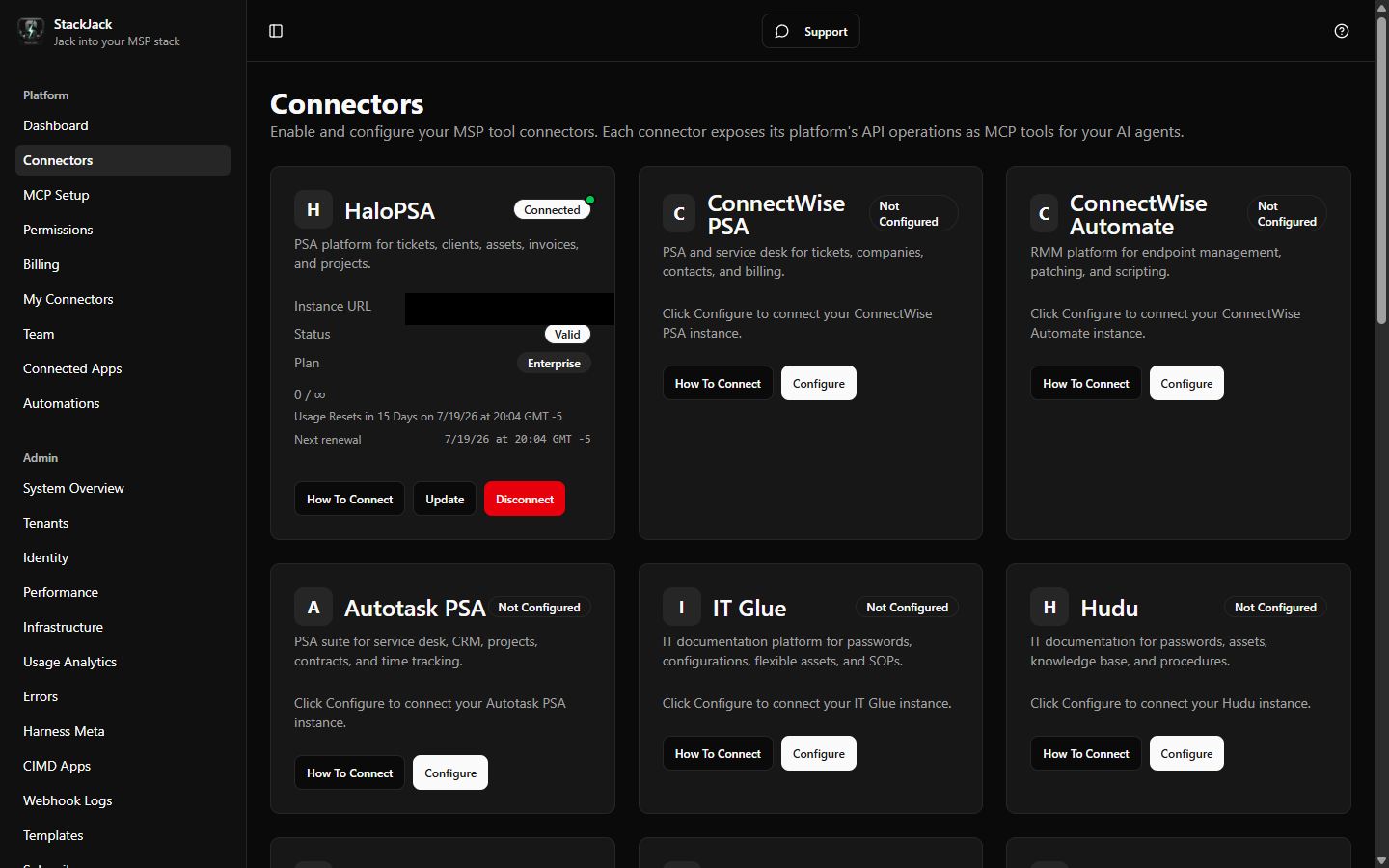 The Connectors page card grid showing a mix of Connected and Not Configured connector cards.
Who can manage connectors
Connector management is role-gated:
| Capability | Owner / Co-owner / Administrator | Member |
|---|---|---|
| View the Connectors page | Yes | Yes — members see their Your personal sign-ins section on the same page |
| Configure, update, disconnect, re-test, re-enable | Yes | No |
| Upgrade or cancel a connector plan | Yes | No |
| Connect their own per-user sign-in (supported connectors) | Co-owners and Administrators: yes, in the Your personal sign-ins section of the Connectors page. Only the primary owner has no personal section — when they authorize an OAuth connector on Connectors, that shared connection is made under their own vendor sign-in | Yes — in their Your personal sign-ins section |
The life of a connector
A connector moves through a simple lifecycle, each stage covered by a chapter in this section:
- Activate — configure credentials and get a plan for the connector (Activating a Connector).
- Connect — walk through the setup guide and configure dialog (Connecting a Connector); StackJack validates the credentials at save (Validation at Save).
- Stay healthy — StackJack continuously re-checks credentials in the background and tells you when something breaks (Connector Health & Auto-Disable).
- Maintain — rotate credentials when needed (Updating & Rotating Credentials).
- Disconnect — remove the credentials when you no longer need the connector (Disconnecting a Connector).