Catalog modes: compact and minimal tool serving
A single Cisco Meraki subscription is 944 tools and Halo Pro is 594, so most StackJack tenants have far more tools than an AI client can hold. Many clients cap the tool list on their side and drop the overflow silently. Catalog mode is the fix: instead of handing a harness your whole multi-thousand-tool catalog, StackJack can serve it a small, searchable surface and let the AI discover any tool on demand.
Catalog mode changes what a harness sees, not what it may do. Permissions still come only from the MCP client's Allowed Tools and your connector subscriptions — every tool stays reachable and every permission check still fires. Modes and pins are presentation, never authorization.
This page is the deep dive. For choosing which tools a client may call at all, see Choosing tools for each client.
Before it does anything: enable catalog modes for your org
Catalog mode is live platform-wide, but it does nothing until your organization turns it on. On Endpoints, tick "Enable catalog modes for this organization."
Until you opt in, every harness receives the full tool list exactly as before — even on the compact host alias below, and even with a ?tools=compact URL. Nothing about catalog mode is working-by-default. You can configure the settings first (mode, pins, per-client and per-member overrides); they take effect the moment you opt in.
Why harnesses need a smaller catalog
Most AI clients cap the tool catalog on their side, and they usually do it without telling you. The recommended mode below is the one that keeps that client under its budget:
| Client | Cap | What happens over the limit | Recommended mode |
|---|---|---|---|
| Claude Desktop / Cowork | 256 tools per server | Silently truncated — the client re-sorts your catalog alphabetically and then cuts, so no ordering on our side can protect a specific tool | compact |
| claude.ai (web) | Undocumented; degrades as connectors add up | Sessions get slow or fail | compact (you must re-add the connector to pick up the change — it caches the tool list) |
| Cursor | ~40 active tools total across all servers | Warning, then tools are silently dropped | minimal |
| Windsurf (Devin Desktop) | 100 total | Silent | compact / minimal |
| GitHub Copilot in VS Code | 128 per request (counting its own built-in tools) | Hard error — the turn fails outright | compact / minimal |
| Microsoft Copilot Studio | 70 per MCP server, plus a ~128-per-agent orchestration budget and a ~500 KB response cap | Fails to load | compact via compact.stackjack.io |
| Claude Code | No hard cap (deferred tool loading) | Fine with very large catalogs | full |
The 70-per-server number is Microsoft Copilot Studio; GitHub Copilot in VS Code is a different product with a 128-per-request limit. Both numbers are right — they apply to different Copilots.
The three modes
- Full — every tool your plan and selections allow. The default, and the right choice for Claude Code and any client without a tool budget.
- Compact — a small set of platform tools plus five catalog tools and your pinned tools (roughly 25–40 total). The AI calls
stackjack_search_toolsto find the tool it needs, then runs it. Every one of your thousands of tools stays reachable and every permission check still applies; the AI just discovers them on demand instead of being handed the whole list. - Minimal — a single folded
stackjack_platformrouter plus the catalog tools and your pins (roughly 5–20 total), for the tightest budgets like Cursor.
The five catalog tools (stackjack_search_tools, stackjack_describe_tools, stackjack_run_readonly_tool, stackjack_run_tool, stackjack_platform) are Free and appear only when catalog mode is enabled — a connection using the full tool list never sees them. Dispatching a tool through them runs the real tool body with every permission, subscription, and safety check applied, and usage is attributed to the tool you actually ran. See Platform tools for what each one does.
Because compact mode shrinks the served list rather than restricting it, it often removes the need to split one broad MCP client into several narrow ones — though splitting by job function still helps the AI pick tools reliably, so the two techniques work together.
Pinned tools
Pinned tools are the tools you always want visible by name in compact and minimal mode — your day-to-day handful (create a ticket, list devices) that the AI shouldn't have to search for. Pin up to 50. Pins are presentation only: they never widen what a client may call, and unknown or unavailable pins are simply dropped.
Setting the mode
Catalog mode is set in three places, and the most specific one wins:
- Per MCP client — on Endpoints, when editing a client ("Catalog mode").
- Per team member — on the Connectors page, in the My AI tool catalog card of your personal sign-ins section.
- Organization default — on Endpoints ("Default catalog mode"), inherited by everything that doesn't override it.
Leave a level on Auto (inherit) to fall through to the next one. If nothing is set, StackJack auto-detects known tool-capped harnesses (Claude, Claude Desktop, Cursor, Windsurf) and gives them a reduced catalog automatically; an explicit setting always beats auto-detection.
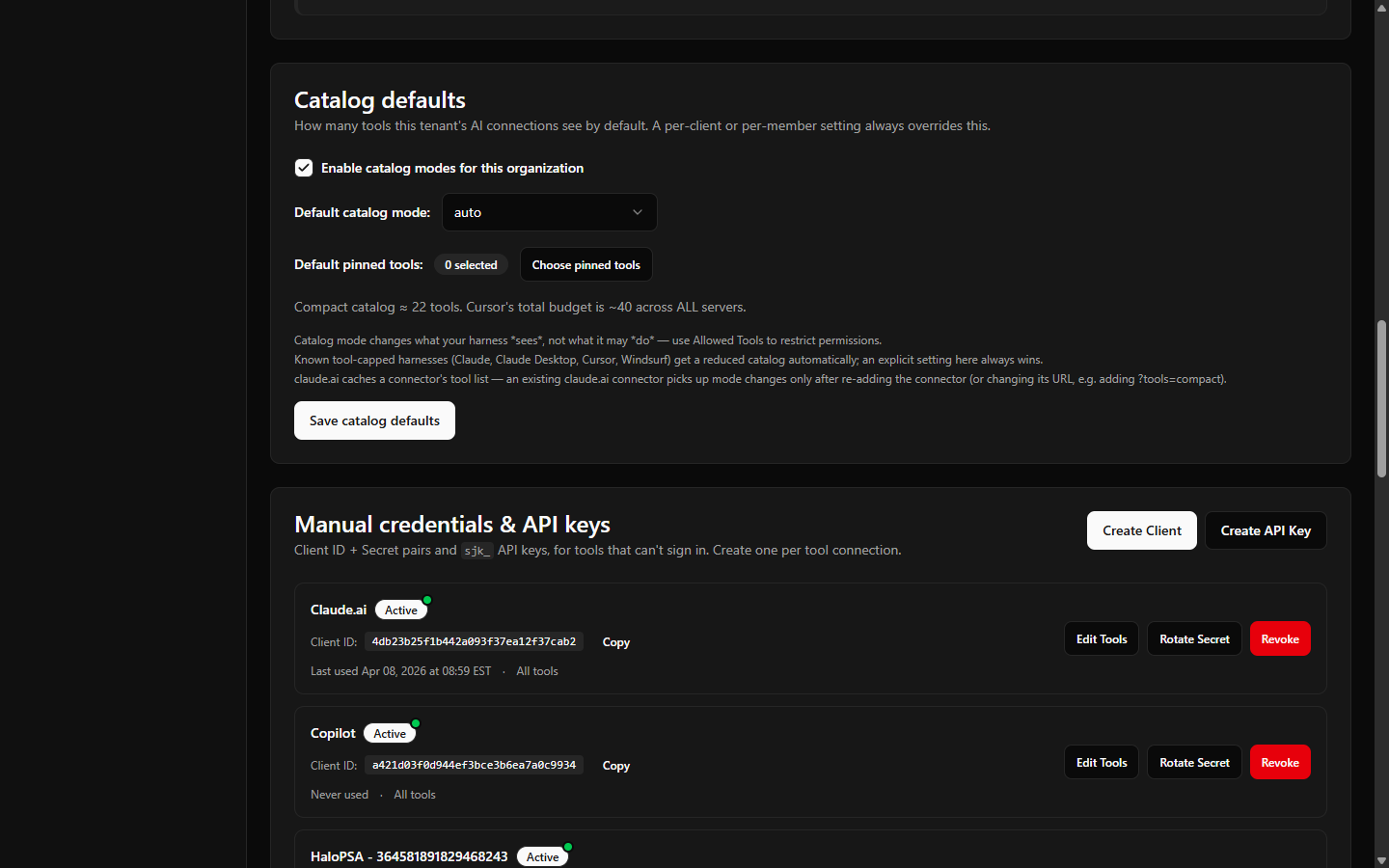 The Catalog defaults section on the Endpoints page — the "Enable catalog modes for this organization" opt-in toggle, the Default catalog mode selector, and the pinned-tools picker.
Overriding per connection with ?tools=
Where your client lets you edit the server URL, append ?tools=compact (or ?tools=minimal / ?tools=full) to it:
https://mcp.stackjack.io/mcp?tools=compact
This beats every Portal setting for that one connection, which makes it the quickest way to test a mode.
Caveat — it doesn't work everywhere. Treat ?tools= as a convenience, not the primary control: ChatGPT rejects query-string server URLs as unsafe, and some stacks strip the query string before connecting. Microsoft Copilot Studio models a server as host + path with no room for one at all. If your client is one of those, use the host alias below or set the mode in the Portal instead.
Serving profiles by host alias
Some harnesses can't carry a ?tools= query string on the server URL at all — Microsoft Copilot Studio models a server as host + path with no room for one, and ChatGPT rejects query-string server URLs outright. For those, StackJack serves the compact profile on a dedicated hostname. Point the harness at https://compact.stackjack.io/mcp instead of https://mcp.stackjack.io/mcp, and every request on that host is served the compact catalog automatically — no query string, no per-connection Portal setting. Authentication and permissions are unchanged and every tool stays reachable; only the served list shrinks.
The compact host alias is live. The per-organization opt-in still applies: an organization that hasn't enabled catalog modes gets the full catalog even on compact.stackjack.io, so enable catalog modes on Endpoints first. For OAuth sign-in connections like Copilot Studio's dynamic discovery, the per-client setting on Endpoints doesn't apply — the host alias (or the organization default, or the per-member setting on the Connectors page) is how those connections select compact.
Which setting wins
Catalog mode can be chosen at several levels; the highest one present decides:
| Priority | Signal | Where you set it |
|---|---|---|
| 1 (highest) | ?tools= on the server URL |
Append ?tools=compact (or minimal / full) to the URL |
| 2 | Host alias | Connect to a serving-profile host such as compact.stackjack.io |
| 3 | Per MCP client | Endpoints → edit client → Catalog mode |
| 4 | Per team member | Connectors → personal sign-ins → My AI tool catalog |
| 5 | Organization default | Endpoints → Default catalog mode |
| 6 | Auto-detect | Automatic for known capped harnesses (Claude, Claude Desktop, Cursor, Windsurf) |
| 7 (fallback) | Full catalog | — |
Both URL-shaped signals — the query string, then the host — beat every stored Portal setting, because each is an explicit per-connection choice for that one endpoint. Everything is still gated by your organization's catalog-mode opt-in above.
If you're on claude.ai: re-add the connector
claude.ai caches a connector's tool list. Changing catalog mode — in the Portal or via ?tools= — will not reach an existing claude.ai connector. To pick up the change, remove and re-add the connector (or change its URL, which counts as a new connector). Other harnesses pick up the new catalog on their next connection.