Connect Hudu
Hudu is an IT documentation platform for passwords, assets, knowledge base articles, and procedures. Connecting Hudu to StackJack gives your AI assistant around 155 Hudu tools — companies, assets and asset layouts, passwords, knowledge base, procedures, networks, websites and expirations, and admin data — called through StackJack's MCP endpoint. (MCP, the Model Context Protocol, is the open standard that lets AI assistants like Claude, ChatGPT, and Copilot call your MSP tools securely.)
Hudu is one of the simplest connectors to set up: it needs just your Hudu instance URL and a single API key.
Before you begin
- You need the Owner, co-owner, or Administrator role in StackJack to configure connectors.
- You need admin access to Hudu (the ability to create API keys under Admin > Basic Information > API Keys).
- Know your Hudu instance URL, for example
https://yourcompany.huducloud.com(or your self-hosted address). - Connecting a connector automatically activates it on the Free plan. You can upgrade to a paid plan at any time from the Connectors page — current pricing is shown in the portal.
Tip: The same steps below are always available in-app — open Connectors, find the Hudu card, and click How To Connect.
Step 1: Create an API key in Hudu
- In Hudu, go to Admin > Basic Information > API Keys.
- Click Create API Key and give it a descriptive name (for example,
StackJack Integration). - Configure the key's restrictions to match what you want your AI assistant to be able to do. Hudu API keys have full access to all data by default, but you can:
- restrict the key to specific companies;
- control whether the key can access passwords;
- control whether the key can perform destructive DELETE operations;
- configure IP whitelisting.
- Copy the generated API key immediately — it may not be shown again.
⚠ If you turn off password access on the key, StackJack's Hudu password tools will fail with permission errors. If you enable IP whitelisting, StackJack's servers must be on the allow list — if validation fails with an authorization error and you use IP whitelisting, that restriction is the first thing to check.
Step 2: Add the credentials to StackJack
In the StackJack portal, go to Connectors and click Configure on the Hudu card.
Fill in the two fields:
StackJack field Value Instance URL Your Hudu instance URL, e.g. https://yourcompany.huducloud.comAPI Key The key you copied from Admin > Basic Information > API Keys Click Save.
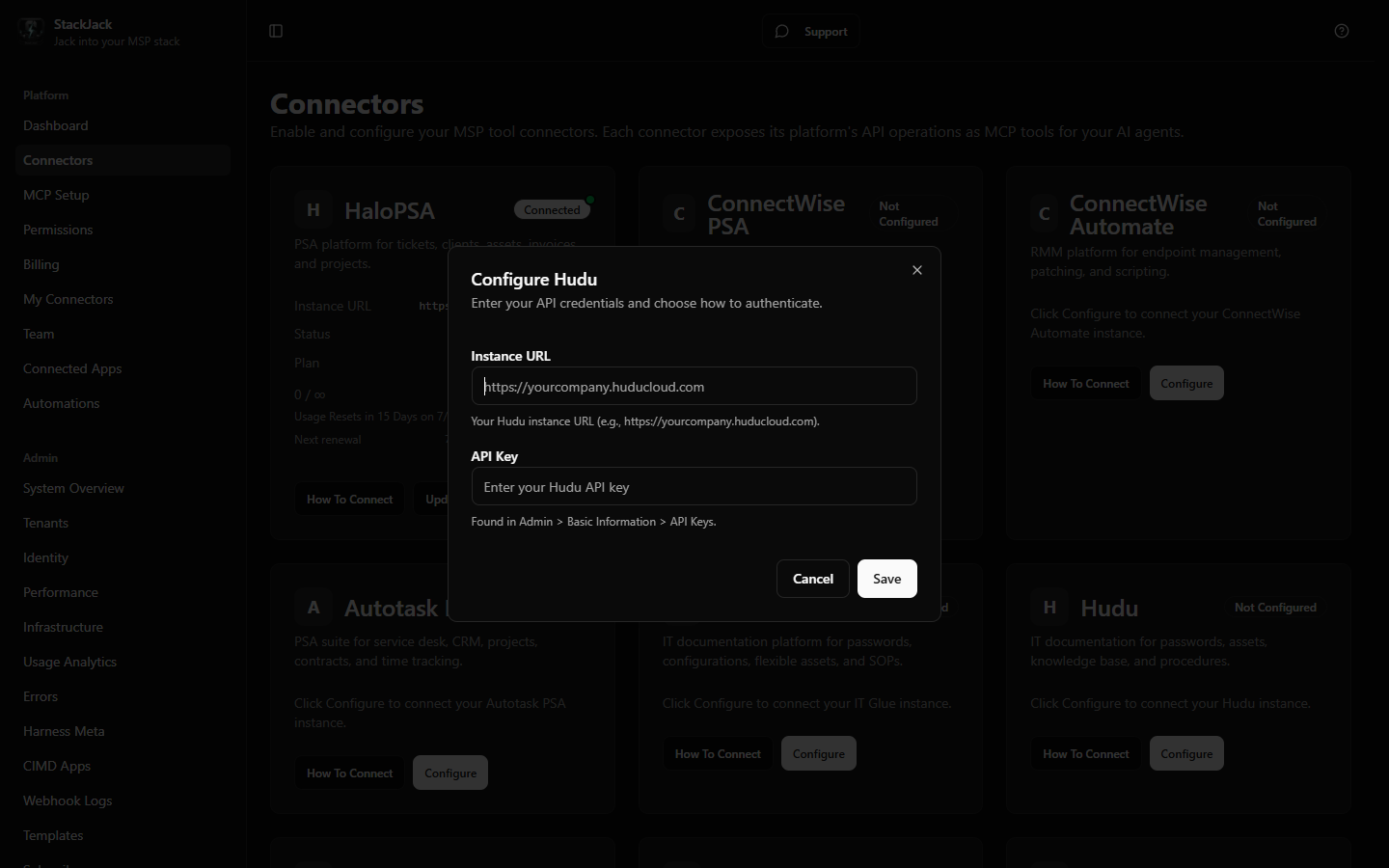 StackJack Hudu configure dialog with Instance URL and API Key fields
What happens when you save
- Your API key is stored encrypted in Azure Key Vault. It is never stored in StackJack's database, and the portal never re-displays a saved key.
- StackJack immediately test-calls Hudu to validate the credentials. If validation fails or times out, your credentials are still saved and you'll see a warning — validation retries automatically in the background.
- A Free plan subscription for Hudu is activated automatically if you don't already have one.
- If validation keeps failing (three consecutive definitive failures), StackJack auto-disables the connection, emails the tenant owner, and shows Re-enable and Update Credentials buttons on the card.
What StackJack can access in Hudu
Access is governed entirely by the restrictions you set on the API key. With an unrestricted key, the tool families cover:
| Area | Access |
|---|---|
| Companies | Companies, users, groups (read/write) |
| Assets & Layouts | Assets, asset layouts, custom fields (read/write) |
| Passwords | Asset passwords, password folders (read/write) |
| Knowledge Base | Articles, folders (read/write) |
| Procedures | Procedures, procedure tasks (read/write) |
| Networking | Networks, VLANs, VLAN zones, IP addresses (read/write) |
| Websites & Expirations | Websites, SSL/domain/warranty expirations (read/write) |
| Admin | Activity logs, exports, uploads, flags, lists, Magic Dash (read/write) |
To narrow this, create the key with tighter restrictions in Hudu (Step 1.3) and/or limit which Hudu tools each team member and MCP client can use from StackJack's Permissions and MCP Setup pages.
Troubleshooting
| Symptom | Likely cause and fix |
|---|---|
| Validation fails immediately after saving | Wrong instance URL (typo, or missing https://), or the API key was copied incompletely. Re-check both and click Update. |
| Validation fails with an authorization error | The key was revoked in Hudu, or IP whitelisting on the key is blocking StackJack. Check the key's settings in Hudu. |
| Password tools fail while other tools work | The API key was created without password access. Create a new key with password access enabled and update the connector. |
| Delete/remove tools fail while other tools work | The API key doesn't permit destructive DELETE operations. Create a new key with that permission if you want your AI to delete records. |
| Some companies' data is missing | The key is restricted to specific companies in Hudu. |
| Card shows Disabled | StackJack auto-disabled the credential after repeated failures. The card shows the exact error plus a recommended action — fix the cause, then click Re-enable (or Update Credentials first if you made a new key). |
Disconnecting
Click Disconnect on the Hudu card to delete the stored credentials from Key Vault. Any AI tools using the connector stop working immediately.
⚠ Disconnecting does not cancel a paid plan — billing continues until you cancel it separately. The Cancel Plan button only appears while the connector is connected, so cancel the plan before disconnecting. If you've already disconnected, save your credentials again to bring the plan controls back, then cancel.