Managing members
The Active Members list on the Team page is your day-to-day roster. From it you change what each member's AI assistant can do, promote or demote roles, and suspend or restore access. This page covers each action and — importantly — exactly what stops working when you revoke someone.
Reading the members list
Each row shows: name, role badge (Owner / Administrator / Member), an Active or Deactivated badge, email, join date, a tool label ("All tools" or "N tools"), and — once the person's agents have made any — a tool-call count.
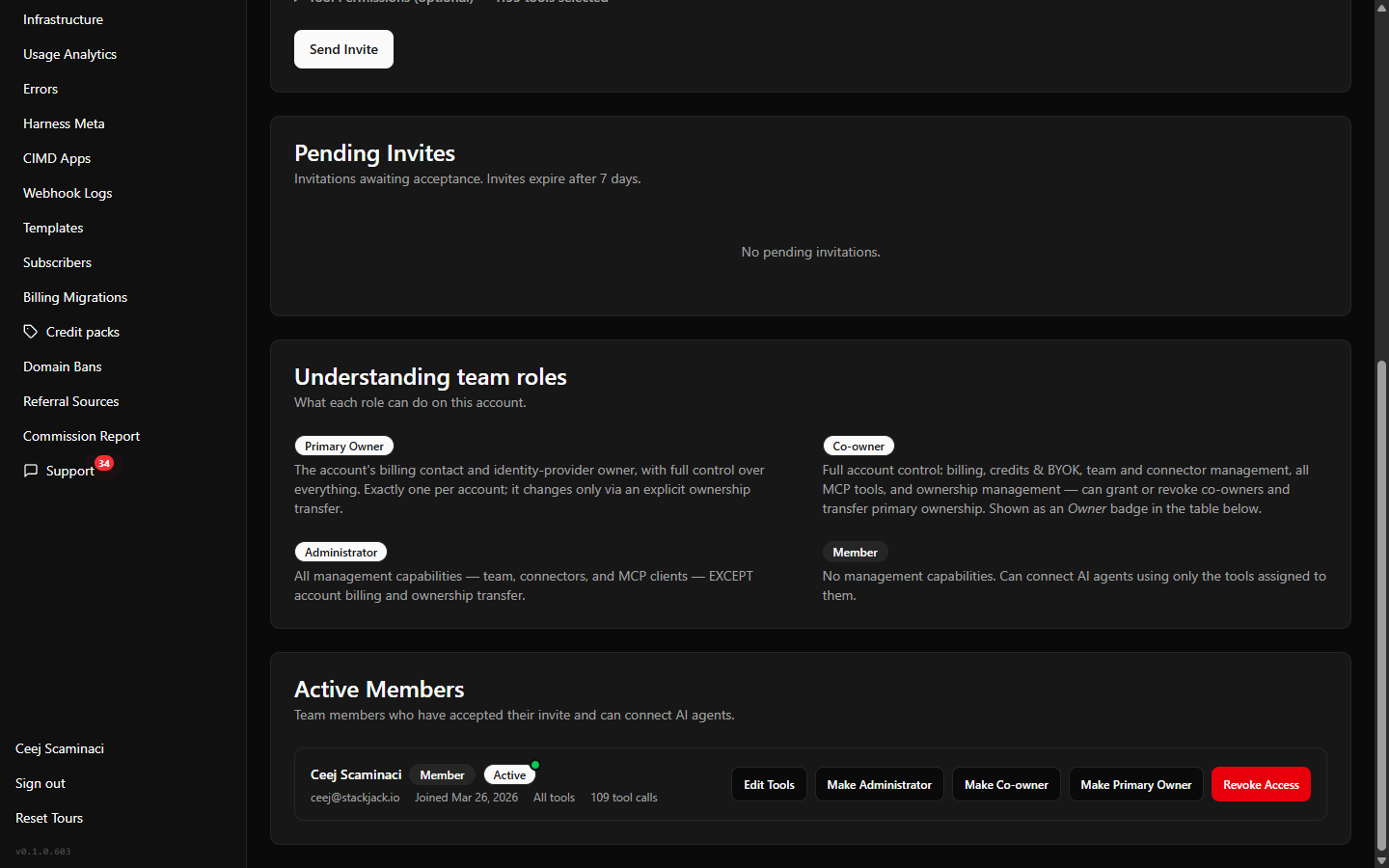 The Active Members list showing several rows with role badges, tool labels, and the per-row action buttons
Change a member's tools (Edit Tools)
Who can do it: Owner, Co-owner, or Administrator. Edit Tools appears on Member and Administrator rows — owners always have all tools and never show the button.
- On the member's row, select Edit Tools.
- Adjust the selection — the tool selector offers quick-select presets (All Tools, My Plan, an All button per connector, Read Only, Write, Clear) plus a search box.
- Select Save.
The change applies to the member and to every AI-assistant credential they own — their agents pick up the new tool set on the next request, without reconnecting. Selecting every tool saves as "All tools" (unrestricted); owners can't be tool-restricted at all.
If more than 70 tools are selected, the selector shows a Copilot Tool Limit warning — Microsoft Copilot supports a maximum of 70 tools per MCP server, so Copilot users should split access across multiple clients with fewer tools each.
Member credentials follow Edit Tools
When a member signs in with their own StackJack account and connects an AI tool on Connectors (/connectors), StackJack auto-mints a personal Client ID + Secret for them. Those per-member credentials appear when you expand that member's row in the Active Members list — under Member credentials, alongside their connected apps and AI sessions — where a manager can Rotate Secret or Revoke any connection. Their tools are not set there — they follow the member's Edit Tools here (a member-level allowlist that applies to all of that member's credentials at once). Full detail: Managing MCP client credentials and API keys.
Change a member's role
Who can do it: Owner or Co-owner only.
- Make Administrator — grants full operational management (everything except billing and ownership; see the capability matrix).
- Demote to Member — returns an Administrator to a plain member.
- Switching between Member and Administrator leaves the person's tool assignment untouched — adjust it separately with Edit Tools if needed.
- Make Co-owner — full account control; a strong confirmation dialog spells out the consequences before you commit. Co-owners automatically get all tools.
- Remove Co-owner — see Ownership and transfer; note the demoted person ends up with no tools assigned until you set some.
Suspend a member (Revoke Access)
"Revoke Access" is StackJack's suspension: the person stays in the list with a Deactivated badge, but every way they could reach your data stops working.
- On the member's row, select Revoke Access.
- Confirm the dialog — it warns that their MCP credentials stop working immediately.
What is shut off, all in one step, effective on the person's next request:
| Access path | Effect |
|---|---|
| Portal sign-in | They see an "Access Revoked" notice instead of your data |
| Their MCP clients / API keys | Deactivated |
| Their per-user connector credentials | Disabled |
| "Sign in with StackJack" OAuth registrations | Revoked |
| Connected-app (shared AI app) authorizations | Revoked |
Guardrails: Revoke Access appears only on Member and Administrator rows — an owner can never be suspended directly. To suspend a co-owner, remove their co-owner status first (Ownership and transfer); the Primary Owner can only ever leave via an ownership transfer, and StackJack refuses any action that would strip the account's last owner.
Restore a member (Reactivate)
On a deactivated row, select Reactivate and confirm. The member comes back with the same tool assignment they had before the suspension (change it afterward with Edit Tools if needed). Restoration is precise:
- Their membership and MCP clients (manual Client ID/Secret and API-key credentials) come back.
- Their per-user connector credentials are re-enabled — unless a credential was disabled for a separate reason (for example a failed connector validation), in which case that credential stays disabled until fixed.
- Connected-app authorizations that were revoked by the suspension itself are reinstated; anything you or StackJack support revoked separately stays revoked.
- "Sign in with StackJack" registrations are not restored. Any AI tool the person had connected via browser sign-in must sign in again — the tool re-registers automatically the first time it reconnects, so this is a one-time re-login, not a setup redo.
Unlinked Identity Users
At the bottom of the Team page, the Unlinked Identity Users card lists people who exist in your identity organization but aren't StackJack team members (and have no pending invite). The card only appears when at least one such user exists. For each:
- Resend Setup Email — shown only for users still in "Pending Setup" who never finished choosing a password.
- Add to Team — makes them a member immediately, with an optional tool restriction. They're notified by email.
If a member's identity was deleted and re-created
If someone's sign-in identity is removed and later re-created with the same email (for example after an identity cleanup), StackJack automatically re-links their membership, MCP clients, and connector credentials by email at their next sign-in. No admin action is needed; if something looks duplicated afterward, contact support@stackjack.io.