Connect Datto RMM
Datto RMM is a remote monitoring and management platform for MSPs. Connecting Datto RMM to StackJack gives your AI assistant around 60 Datto RMM tools — sites, devices, alerts, jobs, audits, variables, and activity logs — called through StackJack's MCP endpoint. (MCP, the Model Context Protocol, is the open standard that lets AI assistants like Claude, ChatGPT, and Copilot call your MSP tools securely.)
Datto RMM uses an API key pair (API Key + API Secret Key) that is generated for a specific Datto RMM user. Everything StackJack can see and do runs as that user — so choosing the right user is the most important step.
Before you begin
- You need the Owner, co-owner, or Administrator role in StackJack to configure connectors.
- You need administrator access to Datto RMM (to enable API access and generate keys).
- Know which platform (pod) your Datto RMM account runs on: Pinotage, Merlot, Concord, Vidal, Zinfandel, or Syrah. If you're not sure, check the web address you use to sign in to Datto RMM — it begins with the platform name (for example, a Merlot account signs in at an address starting with
merlot.). - Connecting a connector automatically activates it on the Free plan. You can upgrade to a paid plan at any time from the Connectors page — current pricing is shown in the portal.
Tip: The same steps below are always available in-app — open Connectors, find the Datto RMM card, and click How To Connect.
Step 1: Generate API keys in Datto RMM
- Log in to Datto RMM as an administrator.
- Navigate to Setup > Account Settings > Access Control and enable the API Access toggle for the account.
- Navigate to Setup > Users and select the user whose identity the API keys should run as. The keys act on behalf of this user — the user's security level and site/device permissions control what StackJack can read and write.
⚠ API keys inherit the security level of their user. Use a dedicated user with the minimum security level required for what you want your AI to do. Read-only or locked-down security levels cause 403 (forbidden) responses on tools that write or that read restricted areas.
- On the user profile, confirm the security level grants access to the sites, devices, and actions you want StackJack to use.
- Click Generate API Keys on the user. Datto RMM returns an API Key (access key) and an API Secret Key.
- Copy both immediately.
⚠ The API Secret Key is shown exactly once — it cannot be retrieved later. If you lose it, regenerate the keys (which invalidates the old pair).
Step 2: Add the credentials to StackJack
In the StackJack portal, go to Connectors and click Configure on the Datto RMM card.
Fill in the fields:
StackJack field Value Platform The Datto RMM platform (pod) that matches where the keys were generated — Pinotage, Merlot, Concord, Vidal, Zinfandel, or Syrah. The Instance URL fills in automatically and can't be edited. API Key The access key from Step 1 API Secret Key The secret key from Step 1 Click Save.
⚠ The platform must match where the keys were generated. A Merlot key fails authentication against Pinotage or Zinfandel, even though all are valid Datto RMM platforms.
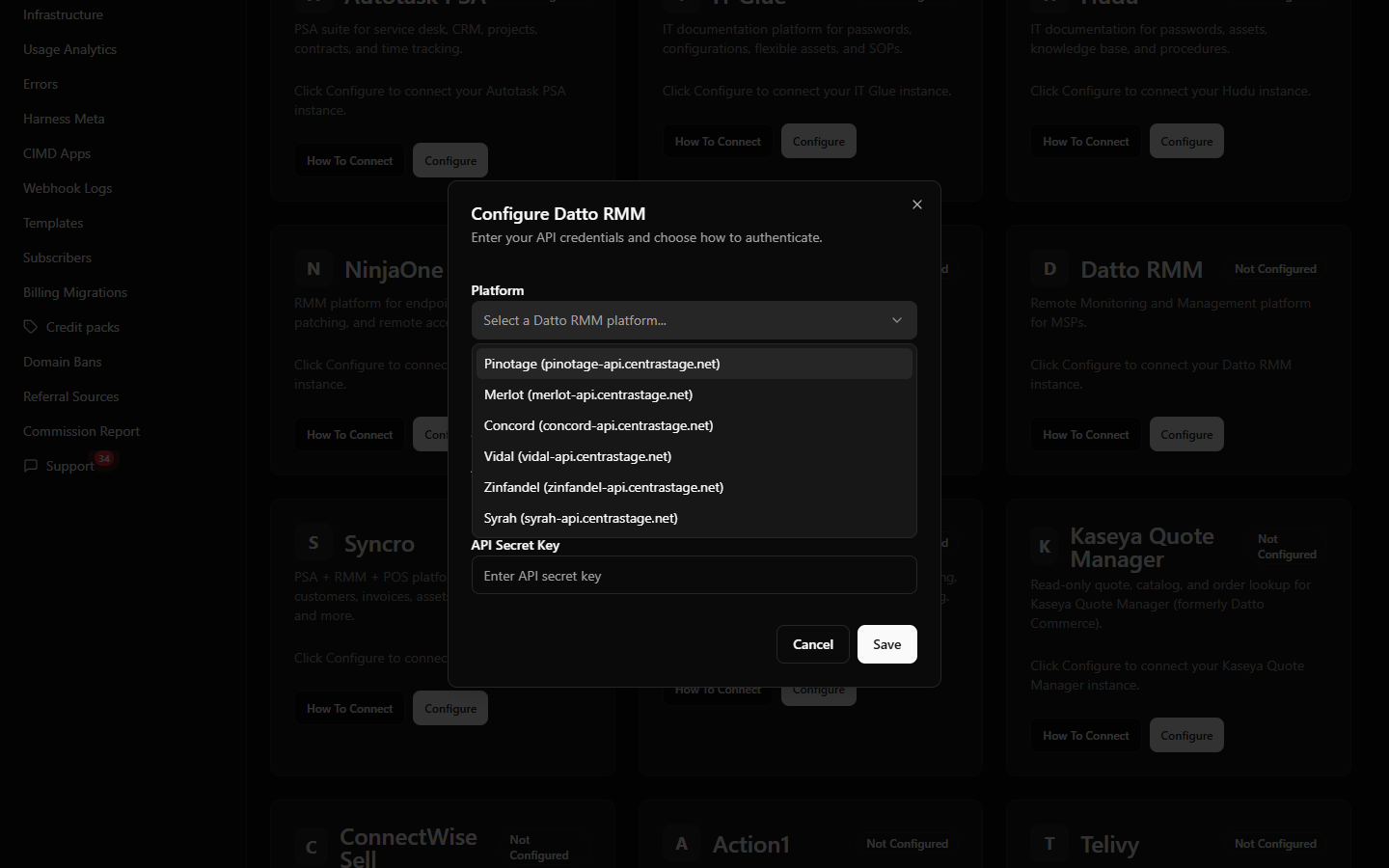 StackJack Datto RMM configure dialog with the platform dropdown open showing the six pods
What happens when you save
- Your key pair is stored encrypted in Azure Key Vault. It is never stored in StackJack's database, and the portal never re-displays a saved secret.
- StackJack immediately test-calls Datto RMM to validate the credentials. If validation fails or times out, your credentials are still saved and you'll see a warning — validation retries automatically in the background.
- A Free plan subscription for Datto RMM is activated automatically if you don't already have one.
- If validation keeps failing (three consecutive definitive failures), StackJack auto-disables the connection, emails the tenant owner, and shows Re-enable and Update Credentials buttons on the card.
What StackJack can access in Datto RMM
Everything is bounded by the API user's security level, site access, and feature permissions. With a suitable user, the tool families cover:
| Area | Access |
|---|---|
| Account | Read |
| Sites | Read/write |
| Devices | Read/write |
| Alerts | Read/write |
| Audit | Read |
| Jobs | Read/write |
| Variables | Read/write |
| Activity Logs | Read |
| System | Read |
Troubleshooting
| Symptom | Likely cause and fix |
|---|---|
| Authentication fails (401) right after setup | The selected platform doesn't match where the keys were generated, or the keys were copied incorrectly. Re-check the platform and re-paste the keys. |
| Authentication fails (401) after working before | The keys were regenerated, deleted, or disabled in Datto RMM — or the API user's account was deactivated. Generate a fresh key pair and click Update on the card (Update Credentials if the card has been auto-disabled). |
| Tools return 403 (forbidden) errors | The API user's security level, site access, or feature permissions don't cover that action. Raise the user's access in Datto RMM (no change needed in StackJack). |
| Some sites or devices are missing | The API user can only see the sites/devices its security level grants. Widen the user's site access in Datto RMM. |
| Card shows Disabled | StackJack auto-disabled the credential after repeated failures. The card shows the exact error plus a recommended action — fix the cause, then click Re-enable (or Update Credentials first if you regenerated keys). |
Disconnecting
Click Disconnect on the Datto RMM card to delete the stored credentials from Key Vault. Any AI tools using the connector stop working immediately.
⚠ Disconnecting does not cancel a paid plan — billing continues until you cancel it separately. The Cancel Plan button only appears while the connector is connected, so cancel the plan before disconnecting. If you've already disconnected, save your credentials again to bring the plan controls back, then cancel.