Getting help — the Support button and drawer
StackJack support lives inside the Portal. Every page shows a Support button in the header; clicking it opens the support drawer — a panel that slides in from the right side of the screen. The drawer is your entire support workspace: you use it to open tickets, read replies from the StackJack team, send your own replies, and close tickets. There is no separate support page or external ticket portal to sign in to.
 The Portal header on any page, with the Support button visible in the center.
The Support button and unread badge
When StackJack support replies to one of your organization's tickets, the Support button shows a pulsing red badge with the number of tickets that have an unread reply. The badge count first loads when you open the drawer; from then on it updates live while you have the Portal open — you don't need to refresh the page. (If you've just signed in or reloaded the page, open the drawer once to see the current count.)
 The Support button with the pulsing red unread badge showing a count.
Opening a ticket that has an unread reply marks it as read and updates the badge.
What's in the drawer
The drawer has three views:
| View | What it shows |
|---|---|
| Ticket list | All of your organization's support tickets, plus the "New Ticket" button. |
| New Ticket | The form for submitting a new ticket. See Submitting a ticket. |
| Conversation | The full message thread for one ticket, with a reply box. See Replies and notifications. |
Use the back arrow in the drawer header to return to the ticket list, or the X to close the drawer.
The ticket list
Tickets are shared across your organization: every signed-in member of your StackJack organization sees the same ticket list, including tickets filed by teammates and tickets filed on your behalf by a connected AI assistant (see Support through your AI assistant).
Each ticket card shows:
- The subject and how long ago the ticket was created (older timestamps display in Eastern Time).
- A priority badge (Low, Medium, High, or Critical) and a status badge (Open, AwaitingReply, or Closed).
- The number of messages on the ticket.
- A red "New reply from admin" indicator when the StackJack team has replied and no one has read it yet.
The list is sorted so open tickets appear before closed ones, tickets with unread replies float to the top, and newer tickets come first. While the list loads you'll see gray placeholder cards; if your organization has never filed a ticket, the list shows "No support tickets yet."
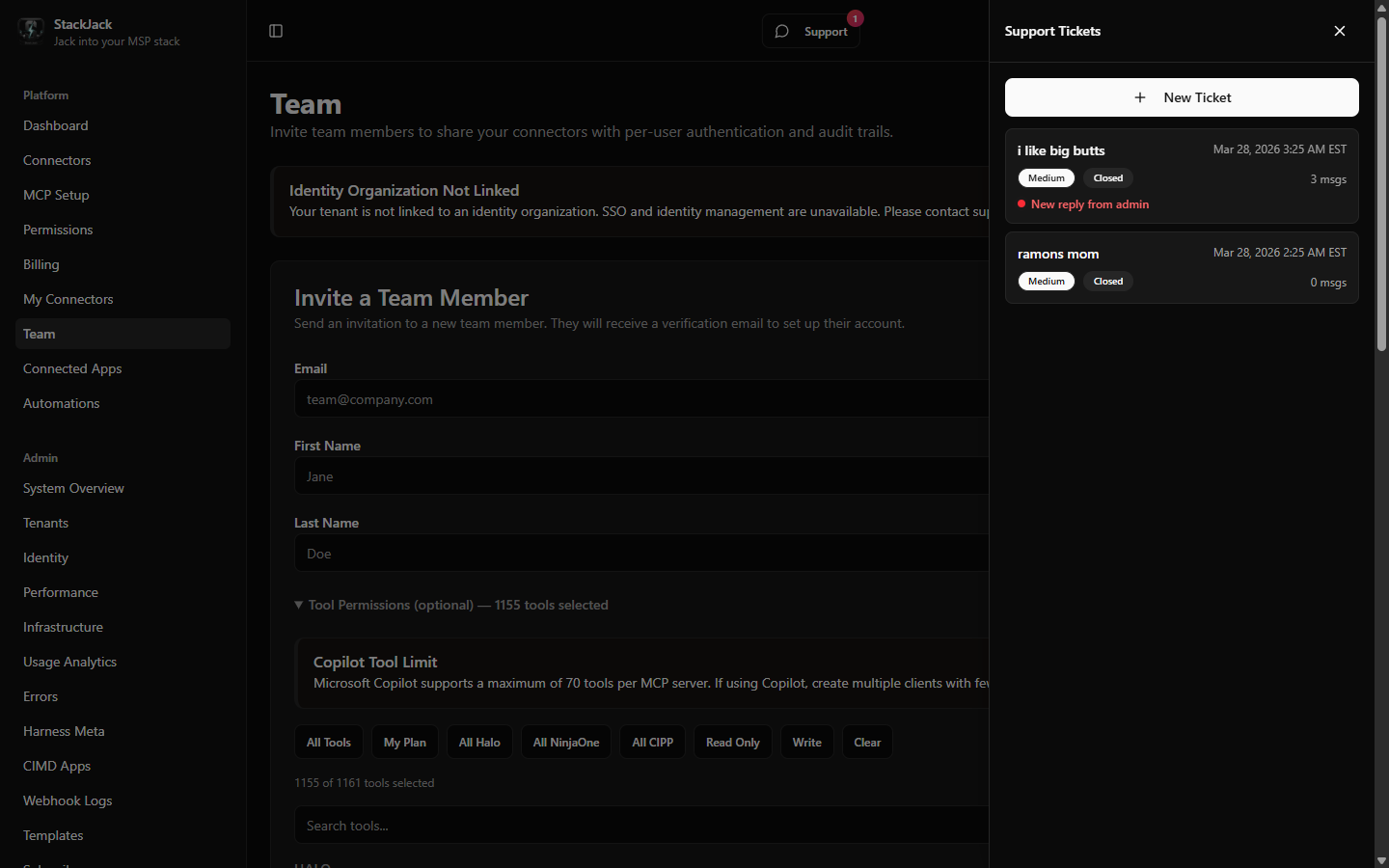 The drawer ticket list with several tickets — at least one showing the red "New reply from admin" indicator and one closed ticket at the bottom.
Jumping straight to a ticket
Any Portal link that ends with ?ticket=<ticket-id> automatically opens the support
drawer on that ticket's conversation. This is how the "View Ticket" button in support
notification emails works. The link only opens tickets that belong to your organization.
If your account isn't linked to an organization yet
If you sign in but your account isn't attached to a ready StackJack organization (for example, your invite hasn't been completed, or your access was removed), the drawer can't show a ticket list. Instead it shows:
- A short explanation of your account's current state and what to do next.
- A support code identifying that state — include it when you contact support.
- A Contact Support button that opens a pre-filled email to the StackJack team.