Connect IT Glue
IT Glue is Kaseya's IT documentation platform — passwords, device configurations, flexible assets, and SOPs. Connecting IT Glue to StackJack lets your AI assistant read and update that documentation through MCP tools (MCP is the Model Context Protocol, the open standard AI assistants use to call external tools).
Once connected, your AI can work with organizations, configurations, flexible assets, passwords, documents, contacts, checklists, attachments, and export jobs — nearly 150 IT Glue tools in total, all named with the itg_ prefix (for example itg_list_organizations).
Before you begin
You'll need:
- A StackJack role that can manage connectors: Owner, co-owner, or Administrator.
- Admin access to your IT Glue account (API keys inherit the permissions of the user who creates them).
- To know which IT Glue region your account is hosted in: US, EU, or AU. If you're unsure, check the URL you use to sign in to IT Glue or ask Kaseya support.
The same steps below are also shown inside the portal — open Connectors, find the IT Glue card, and click How To Connect.
Step 1 — Generate an API key in IT Glue
- Sign in to IT Glue as an administrator.
- Go to Account > Settings > API Keys.
- Click Generate New API Key and give it a descriptive name (for example, "StackJack Integration").
- If you want StackJack to read and write passwords, enable the Password Access toggle on the key. This is a separate toggle from regular API access — without it, every password tool is blocked (see Password Access below).
- Copy the key immediately. IT Glue shows the key exactly once and cannot retrieve it later.
⚠ IT Glue automatically revokes API keys that go unused for 90 days. If that happens, StackJack will start showing validation failures for this connector — generate a new key and save it again.
Step 2 — Connect in StackJack
- In the StackJack portal, open Connectors from the sidebar.
- Find the IT Glue card and click Configure (or How To Connect first if you want the in-portal walkthrough).
- Fill in the form:
| Field | What to enter |
|---|---|
| Region | Select US (api.itglue.com), EU (api.eu.itglue.com), or AU (api.au.itglue.com). |
| Instance URL | Auto-filled from your region selection — you can't edit it directly. |
| API Key | Paste the key you generated in Step 1. |
- Click Save.
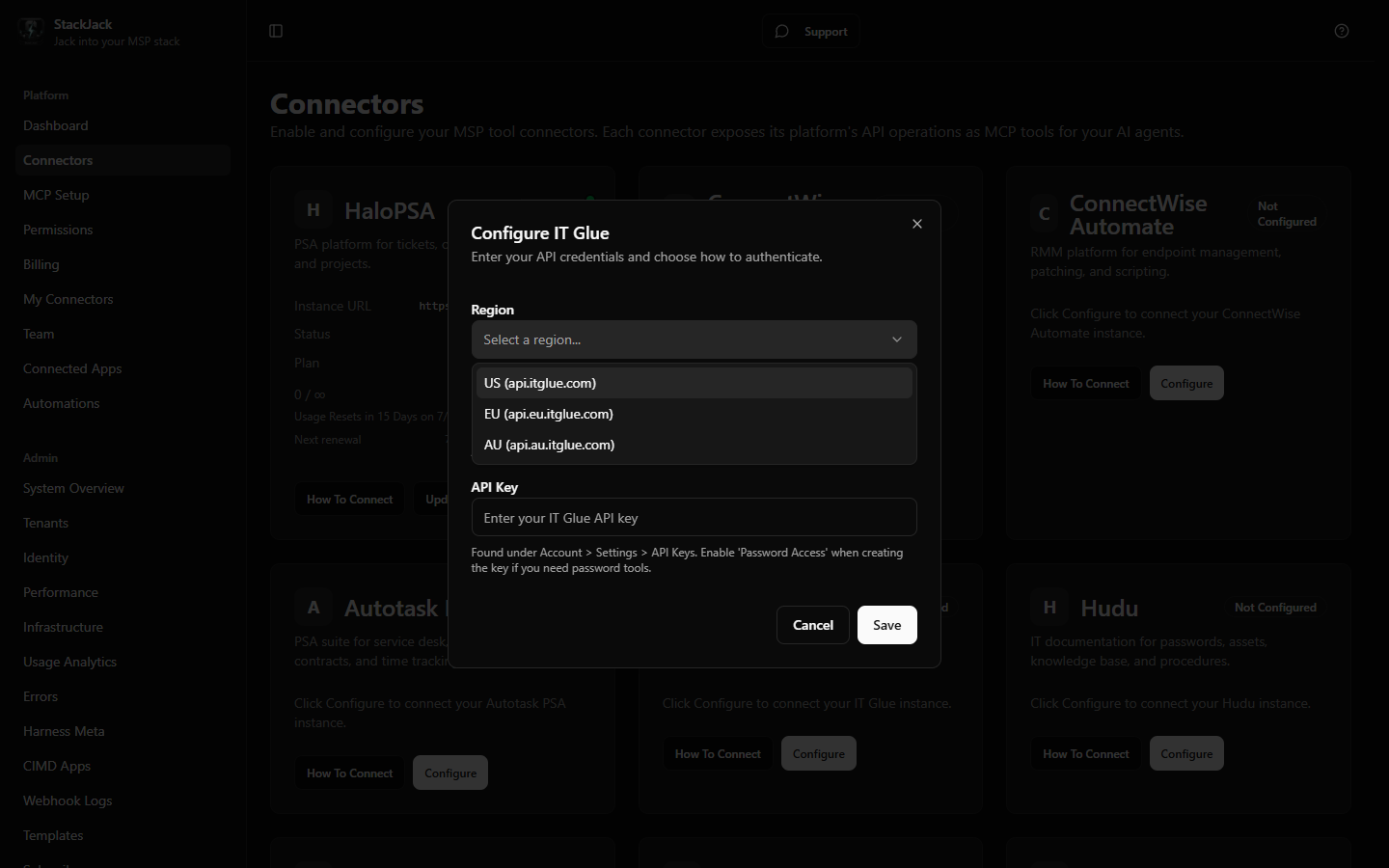 The IT Glue configure dialog on /connectors with the Region dropdown open showing US/EU/AU options and the API Key field filled with a masked value.
What happens when you save
- Your API key is stored encrypted in a secure vault — it is never stored in StackJack's database and never shown again in the portal.
- A Free plan for IT Glue is activated automatically, so your AI can start calling IT Glue tools right away.
- StackJack immediately runs a live validation call against IT Glue. If validation fails, your credentials are still saved — fix the underlying issue (wrong region, revoked key, etc.) and click Re-test on the card.
Password Access
IT Glue treats password data as a separate capability:
- If your API key was created without Password Access, all
itg_password tools return a clear error explaining that the capability isn't enabled, with guidance on how to fix it. Everything else keeps working. - Password Access cannot be added to an existing key — create a new key with the toggle enabled, then update the connector in StackJack with the new key.
- StackJack checks whether your key has Password Access every time it validates the connector and caches the answer for up to an hour. Re-saving the connector triggers a fresh validation, so after switching to a Password-Access key, save the new key and password tools work immediately.
Permissions your key grants
IT Glue API keys inherit the permissions of the user who created them — there are no per-key scopes beyond the Password Access toggle. The connected key can reach these areas of the IT Glue API:
| Area | Access |
|---|---|
| Organizations | Organizations, Locations, Contacts (read/write) |
| Configurations | Configurations, Interfaces, Domains (read/write) |
| Passwords | Passwords, Password Folders (read/write — requires Password Access) |
| Documents | Documents, Sections, Images (read/write) |
| Flexible Assets | Types, Fields, Instances (read/write) |
| Checklists | Checklists (read/update/delete — IT Glue has no create API) |
| Attachments | Attachments and related items (read/write) |
| Discovery | Expirations, Logs (30-day window), User Metrics (read) |
| Directory | Users, Groups (read/write) |
| Exports | Async export jobs (read/write) |
| Reference | Countries, Regions, Manufacturers, Models, Types (read/write) |
To see exactly which tools use which permissions — and to scope an AI client to a smaller tool set — open Permissions in the portal and select IT Glue.
Plans, tools, and usage limits
- The IT Glue tool family is split across plan tiers: the Free plan includes the core read/browse tools, and the Pro plan unlocks the larger write/management surface. Upgrade from the IT Glue card on the Connectors page — current pricing is shown in the portal and at checkout.
- Each plan includes a monthly tool-call allowance; the usage bar on the connector card tracks it through your billing cycle. StackJack applies no per-minute rate limit of its own — the monthly allowance is the only StackJack-side cap.
- Separately, StackJack paces its requests to IT Glue to respect IT Glue's own API limit of 3,000 requests per 5 minutes, so heavy AI sessions won't get your key throttled.
Troubleshooting
| Symptom | Likely cause and fix |
|---|---|
| "Saved but validation failed" message | Credentials were stored but the live check failed. Verify the region matches where your account is hosted and that the key wasn't revoked, then click Re-test on the card. |
| Password tools return a "capability not enabled" error | Your key lacks Password Access. Create a new key with the toggle enabled and update the connector. |
| Connector suddenly shows as disabled | Three consecutive failed background checks auto-disable a connector, and the account owner is emailed. A common cause is IT Glue's 90-day auto-revoke of unused keys. Generate a new key, click Update Credentials on the card to save it, then Re-enable. |
| Individual tools return 403 | The IT Glue user who created the key lacks permission for that area. Recreate the key as a user with broader access. |
Disconnecting
On the IT Glue card, click Disconnect and confirm. This deletes your stored credentials and stops all IT Glue tool calls.
⚠ Disconnecting does not cancel a paid IT Glue plan — billing continues until you cancel it separately. The Cancel Plan button only appears while the connector is connected, so cancel the plan before disconnecting. If you've already disconnected, save your credentials again to bring the plan controls back, then cancel.