Huntress is a managed security platform for SMBs and the MSPs that serve them. It combines managed EDR (endpoint detection and response), identity threat detection for Microsoft 365 (ITDR), External Recon, and a 24/7 human Security Operations Center (SOC) that investigates suspicious activity and writes actionable Incident Reports.
Connecting Huntress to StackJack gives your AI assistant a family of roughly 90 huntress_ MCP tools — MCP (Model Context Protocol) tools are the standardized commands an AI assistant can call through StackJack. With them, your AI can:
- Inventory deployed agents and protected identities across all your organizations
- Review SOC-authored Incident Reports and the remediations they recommend
- Triage Escalations and Platform Actions that need a human decision
- Investigate raw Signals (the detections that feed investigations)
- Audit organizations, user memberships and roles, External Recon exposed ports, and Unwanted Access rules
- Reconcile billing — invoices and summary reports, plus reseller usage if you're a reseller
- Act (on Pro plans) — isolate or uninstall agents, approve or reject remediations, resolve incident reports and escalations, manage organizations and memberships, and run SIEM queries
How StackJack authenticates to Huntress
Huntress issues API credentials as a pair: an API Key (the public half) and an API Secret Key (the private half). StackJack sends them with every request; there is no OAuth flow and nothing to refresh. The base URL is fixed (Huntress is a global SaaS with no regional endpoints), so the key pair is all you enter.
The key pair inherits the visibility of the Huntress account it was generated in — it can see all organizations and agents visible to that account.
Before you begin
- In StackJack: you need a role that can manage connectors (tenant Owner, a co-owner, or an Administrator).
- In Huntress: you need administrator access to your Huntress portal at
https://<your-subdomain>.huntress.io. - Decide whether you need write access. See "Read-only vs write-capable keys" below before generating.
Step 1 — Generate API credentials in Huntress
- Sign in to your Huntress portal as an administrator.
- Click the Account dropdown in the top-right corner and choose API Credentials.
- Click Generate. Huntress issues an API Key and an API Secret Key.
- Copy the Secret Key immediately — it is shown exactly once. The API Key remains visible afterwards, but the Secret Key can only be regenerated, and regenerating invalidates the old pair.
Read-only vs write-capable keys
The default account-level API key is read-only: it can call every read tool (the entire Free-tier surface) but none of the write/action tools. To use the Pro write tools — isolating hosts, approving remediations, resolving escalations, managing organizations and memberships, SIEM queries — your API key must carry the relevant write permissions, which come from the user context the key is generated with. A read-only key calling a write tool gets an authorization error from Huntress, even on a Pro plan.
If you only want reads, the default read-only key is exactly right — and it's the safest choice.
Reseller accounts
If you are a Huntress reseller (you manage billing and a portfolio of downstream accounts), generate the credentials from your reseller account. Reseller credentials unlock two extra tool families:
- Managed Accounts — read a downstream account's agents, signals, incident reports and remediations, External Recon ports, invoices, organizations, memberships, and summary reports by passing its account ID (discover IDs with
huntress_list_managed_accounts). - Reseller Billing — read reseller invoices, usage line items, and subscriptions.
A standard (non-reseller) key still works for every regular tool; it just can't call the Managed-Account or Reseller-Billing tools.
Step 2 — Add the credentials in StackJack
- In the StackJack portal, open Connectors.
- Find the Huntress card. Click How To Connect for the same steps inline, or Configure to enter the credentials.
- Paste the API Key (Public) and the API Secret Key (Private). There is no URL to enter — the base URL is fixed at
https://api.huntress.io. - Click Save.
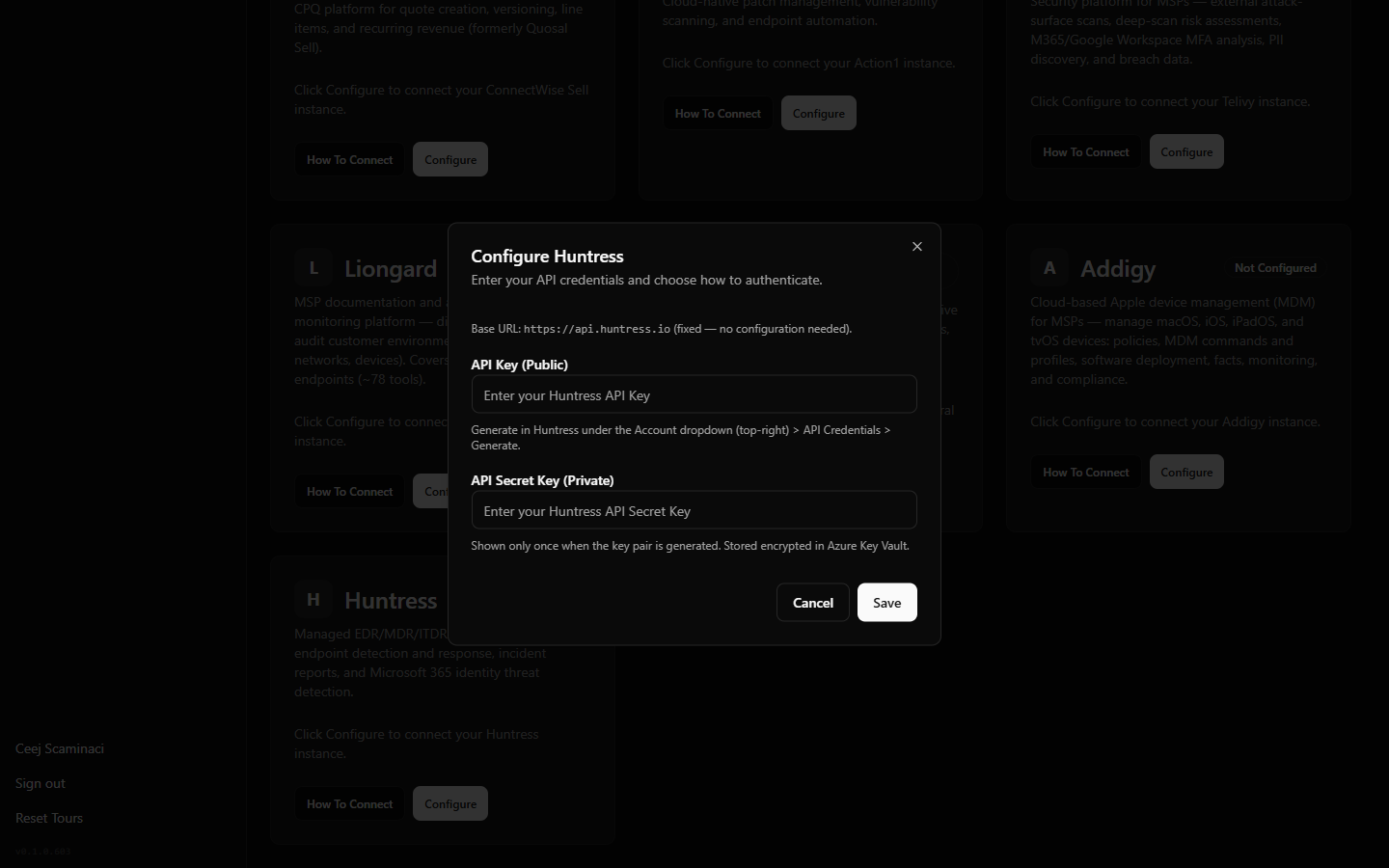 StackJack Connectors page with the Huntress Configure dialog open, showing the API Key and API Secret Key fields
What happens when you save
- The keys are stored encrypted in Azure Key Vault — never in the StackJack database, and they are never shown back to you.
- If this is the first time you configure Huntress, a Free-tier subscription for the connector is created automatically so its Free tools work right away.
- StackJack immediately live-validates the credentials by calling the Huntress account endpoint. Validation never blocks the save: you'll either see a success confirmation or a "saved but validation failed" warning with the reason.
- The connector card shows the current connection and validity status from then on.
Plans and available tools
- Free includes the read tools: agents, identities, incident reports and remediations, escalations, platform actions, signals, organizations, memberships, invoices, External Recon ports, and summary reports — plus the Managed-Account and Reseller-Billing read families if you're a reseller.
- Pro adds the write/action tools: isolate and release agents, update agent tags, uninstall agents, resolve incident reports, approve/reject remediations, resolve escalations, create/update/delete organizations and memberships, manage Unwanted Access rules, run SIEM queries, and (for resellers) manage downstream accounts and subscriptions.
- Business offers the same tool set as Pro with a higher monthly call quota.
Huntress has no per-user sign-in flow, so there is no per-user attribution — all AI traffic uses the shared key pair. Current pricing and quotas are shown in the portal's Billing page and at checkout.
Safety note: some Pro actions change security state irreversibly. In particular, uninstalling an agent removes the Huntress sensor from the endpoint and stops monitoring — reinstalling requires a fresh deployment. Scope your AI's access deliberately: use the tool selections on the MCP Setup page and the Permissions page to enable only the actions you want an AI to take, and consider keeping a read-only key unless you specifically need response actions.
Rate limits
Huntress enforces a modest per-minute API rate limit. StackJack automatically paces its Huntress calls per tenant below that ceiling, so bursts of tool calls queue briefly instead of failing — a long multi-page inventory read may simply take a little longer.
Rotating or replacing the keys
Regenerating the key pair in Huntress immediately invalidates the old pair. Do the swap in this order to minimize downtime:
- Click Generate in Huntress (Account → API Credentials) and copy the new Secret Key.
- Immediately update Connectors → Huntress → Configure in StackJack with the new pair.
Troubleshooting
| Symptom | Likely cause | What to do |
|---|---|---|
| "Saved but validation failed" right after saving | Key or Secret mis-pasted, or the pair was regenerated in Huntress | Regenerate the pair in Huntress and paste both values again |
| Every Huntress call fails after working previously | The key pair was regenerated in Huntress, invalidating the saved pair | Update the credential in StackJack with the current pair |
| Write tools return an authorization error while reads work | The API key is read-only (the default account-level key) | Generate a key with the relevant write permissions and update the credential |
| Managed-Account or Reseller-Billing tools fail | The credentials come from a standard (non-reseller) account | Generate credentials from your reseller account |
| Write tools missing from your AI's tool list | Connector is on the Free tier, or the tools aren't selected for your client | Upgrade the Huntress connector plan and check your tool selections on the MCP Setup page |
| A tool reports the SIEM query is unavailable | The Huntress SIEM product isn't enabled on your account | Enable SIEM in Huntress or skip huntress_query_siem |