Connect Action1
Action1 is a cloud-native patch management, vulnerability scanning, and endpoint automation platform. Connecting it to StackJack lets your AI assistant work with your Action1 enterprise through MCP tools — the standardized tool calls (Model Context Protocol) that AI harnesses like Claude or ChatGPT use to act on your behalf. Once connected, your AI can list endpoints, review vulnerabilities and patch status, inspect automations, and (on paid plans) run write operations such as managing automation schedules and deploying agents.
The Action1 tool family contains roughly 145 tools, all prefixed action1_. Read and reporting tools are available on the Free plan; write tools (including automation management) and composite analytics tools (fleet-wide summaries and rollups) require a Pro or Business plan for the Action1 connector.
Before you begin
You will need:
- A StackJack role that can manage connectors: tenant Owner, co-owner, or Administrator. Plain Members cannot add or edit connector credentials.
- Admin access to your Action1 console, so you can create API credentials.
- To know which region your Action1 account is hosted in: US (
app.action1.com), EU (app.eu.action1.com), or AU (app.au.action1.com). Check the address bar when you log in to Action1 — the credentials you create only work against their home region.
Action1 credentials are tied to a user identity inside your Action1 enterprise. That user's role and per-organization access determine exactly what StackJack can read and write. For least privilege, create a dedicated API user with only the role your team actually needs.
Step 1: Create API credentials in Action1
- Log in to the Action1 console as an administrator, in your home region.
- Go to Account → API Credentials.
- Click New Credentials. Action1 generates two values:
- a Client ID in email format (it looks like
api-key-...@action1.com— this is normal, it is an identifier, not a mailbox), and - a Client Secret.
- a Client ID in email format (it looks like
- Copy both values immediately. The secret may not be shown again — if you lose it, create new credentials.
Step 2: Add the credentials in StackJack
- In the StackJack portal, go to Connectors.
- Find the Action1 card. Click How To Connect if you want the guided walkthrough of Step 1, or go straight to Configure.
- In the configuration dialog:
| Field | What to enter |
|---|---|
| Region | US, EU, or AU — must match where your Action1 account lives. |
| Instance URL | Filled in automatically from the region you pick; you cannot edit it. |
| Client ID | The email-format identifier from Action1 (e.g. api-key-...@action1.com). |
| Client Secret | The secret generated alongside it. |
- Click Save.
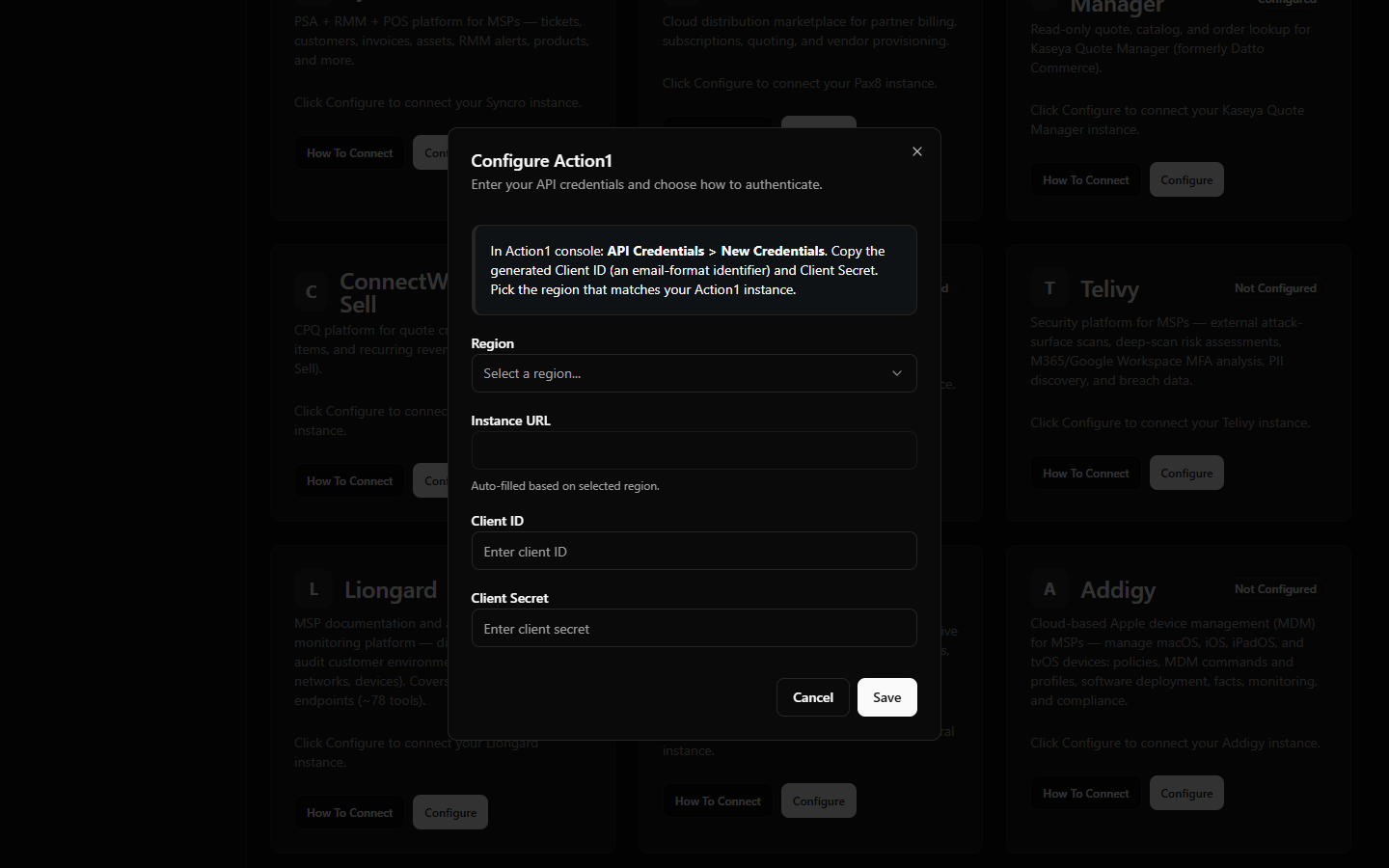 StackJack Connectors page — Action1 configure dialog showing the region dropdown, auto-filled Instance URL, and Client ID / Client Secret fields.
What happens when you save
- Your credentials are stored encrypted in Azure Key Vault — they are never written to the StackJack database.
- StackJack immediately tests the credentials against Action1. If the test fails, your credentials are still saved and you'll see a "saved, but validation failed" message with the reason so you can correct it.
- A Free subscription for the Action1 connector is created automatically, so the Free-tier tools appear in your AI harness right away. Upgrade from the connector card whenever you're ready — current pricing is shown in the portal at checkout.
Ongoing token handling — nothing for you to do
Action1 uses short-lived access tokens (about an hour) with rotating refresh tokens behind the scenes. StackJack refreshes these automatically and safely in the background — you never re-enter credentials unless you revoke or regenerate them inside Action1.
Health monitoring
StackJack periodically re-validates the connection. If it fails definitively three times in a row (for example, because the credentials were revoked in Action1), the connector is automatically disabled and the tenant owner is emailed. The connector card then shows the error details along with Re-enable and Update Credentials buttons. (A card that is failing validation but not yet disabled shows a Re-test button instead.)
What your AI can do once connected
- Free plan: read and reporting tools — list organizations, endpoints, endpoint groups, installed software, updates, vulnerabilities, automations, scripts, reports, and the audit trail.
- Pro / Business plans: everything in Free, plus write tools (create/update/delete automation schedules, apply automations, manage deployment settings and deployers, and more) and composite analytics tools such as vulnerability summaries, patch-compliance rollups, and endpoint health rollups.
- Business includes the same tool set as Pro; higher plans mainly raise your monthly usage allowance.
Two usage notes worth passing to whoever drives the AI:
- Organizations first. Action1 supports multiple organizations inside one enterprise, and almost every operational tool needs an organization ID. The AI should call
action1_list_organizationsfirst to discover them. - Usage caps. Each connector subscription has a monthly tool-call allowance (currently 100 calls on Free, 5,000 on Pro, 50,000 on Business per billing cycle). There is no per-minute burst limit on your MCP calls — the monthly cap is the enforcement point. Your usage bar is on the connector card and Dashboard.
Rate limits toward Action1
Action1 does not publish an API rate limit, so StackJack conservatively paces outbound requests to Action1 at 60 requests per minute per tenant. Heavy multi-step AI sessions may briefly queue behind this pacing; this protects your Action1 enterprise from being hammered.
Troubleshooting
| Symptom | Likely cause and fix |
|---|---|
| Validation fails right after saving | Region mismatch (credentials created in EU but US selected, or vice versa), or a typo in the Client ID/Secret. Re-check the region and re-paste both values. |
| Tools return permission errors | The Action1 user the API credentials belong to lacks the role or organization access needed. Adjust that user's role in Action1. |
| Connector shows Disabled | Three consecutive validation failures — usually revoked or regenerated credentials. Create fresh credentials in Action1, click Update Credentials on the card to save them, then Re-enable. |
| A tool asks for an organization ID | Expected — run action1_list_organizations to discover the IDs first. |
Per-user access
Action1 does not support per-user sign-in through StackJack — the connector uses one shared credential for the whole tenant, and all tool calls run as the Action1 user who owns the API credentials. (Per-user connector credentials are only available for HaloPSA, NinjaOne, and N-able N-central.)
Disconnecting
Disconnect on the Action1 card deletes the stored credentials from Key Vault and removes Action1 tools from your AI harness. Note that disconnecting does not cancel a paid Action1 connector subscription — billing continues until you cancel the plan. The Cancel Plan button only appears while the connector is connected, so cancel the plan before disconnecting; if you've already disconnected, save your credentials again to bring the plan controls back, then cancel.