Connect ConnectWise Automate
ConnectWise Automate is a remote monitoring and management (RMM) platform for endpoint management, patching, and scripting. Connecting it to StackJack lets your AI assistant query and act on your managed computers, clients, scripts, patches, and monitors. Tool results are passed through as raw Automate API responses.
The Automate integration provides about 200 tools (prefix cwa_) spanning:
| Family | Examples of what the AI can do |
|---|---|
| Computers | Inventory, hardware, operating system, installed software, patching state, maintenance windows, alert suspension, third-party patching |
| Scripts | Browse script folders, inspect scripts, run scripts against computers |
| Clients, locations & contacts | Client and location records, location extra fields, contacts |
| Groups & policies | Group membership, group policies |
| Monitors & alerts | Monitor status, alert history |
| Patching | Patch policies and computer patch operations |
| Network devices & probes | Network device inventory, probe lookups and configuration |
| Tickets | Automate tickets (read) |
| Users & system | Automate users, user classes, system info, audit logs, remote agent operations, searches, batch operations |
Tool availability depends on your Automate connector plan tier — the in-portal tool selector and the Permissions page (/permissions) show exactly which tools your plan includes.
How authentication works
StackJack signs in with a dedicated Integrator (or local API) user account: it exchanges the username/password at Automate's token endpoint for a bearer token, caches the token, and refreshes it automatically before expiry. Every request also carries a Developer Client ID header (required by ConnectWise since Automate 2020 Patch 11).
If your Integrator account has authenticator-app MFA (TOTP) enabled, StackJack can handle it: you store the authenticator secret (seed) once, and StackJack generates a fresh 6-digit code for each token request. Push-based MFA (Duo push, Microsoft Authenticator number matching, security keys) is not supported — use a TOTP-only account.
This is a single shared credential for your whole team; there is no per-user sign-in for this connector.
Prerequisites in ConnectWise Automate
- Create an Integrator account. In ConnectWise Automate, create a dedicated Integrator or local API user account for StackJack. Give it the access level matching the tools you want to use. The account may optionally use authenticator-app MFA (TOTP); push-based MFA is not supported.
- Register a Developer Client ID. Register your application at
developer.connectwise.comto get a Client ID (a GUID). It is required for all API requests since Automate 2020 Patch 11. - Capture the TOTP secret — only if MFA is enabled. During authenticator enrollment, capture the base32 secret shown when you scan the QR code (most enrollment screens have a "can't scan? enter this code" option). This is the seed itself — not a 6-digit code from your authenticator app.
- Record everything: Integrator username, password, Developer Client ID, and (if applicable) the authenticator secret.
Set up the connector in StackJack
- In the StackJack portal, go to Connectors and find the ConnectWise Automate card.
- Optional: click How To Connect for the in-portal version of this guide.
- Click Configure.
- Fill in the fields:
| Field | What to enter |
|---|---|
| Instance URL | Your Automate server URL — see the URL guidance below |
| Integrator Username | The Integrator account's username |
| Integrator Password | The Integrator account's password |
| Developer Client ID | The GUID from developer.connectwise.com (required) |
| Authenticator Secret | Optional — the base32 TOTP seed, only if the account has authenticator-app MFA |
- Click Save.
StackJack blocks obvious mis-pastes in the Authenticator Secret field: if you enter a short all-digit value (4–10 digits — i.e. a one-time code instead of the seed), the save is rejected with an explanation. When you later edit a connected card, the field shows "(currently configured — leave blank to keep)"; leave it blank to keep the stored seed, or tick Clear stored authenticator secret to remove it explicitly.
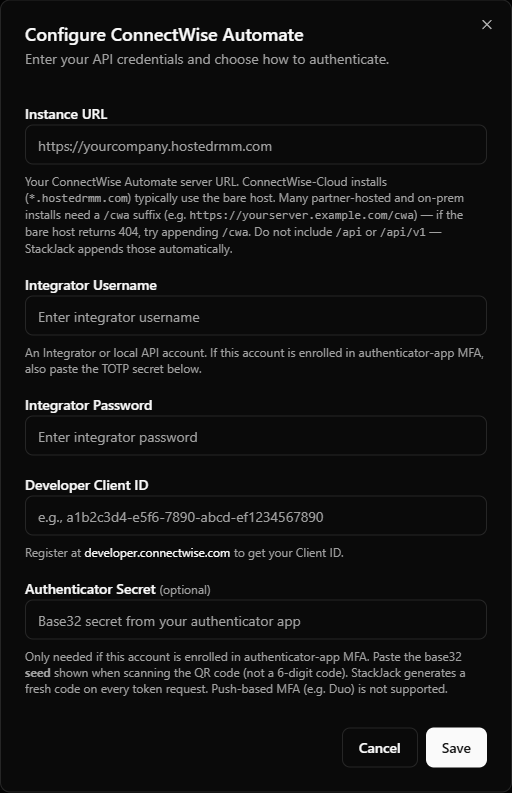 StackJack ConnectWise Automate configure dialog showing all five fields, with the Authenticator Secret field in its "currently configured — leave blank to keep" state
Instance URL guidance
Getting the URL right is the most common setup hurdle:
- ConnectWise-Cloud installs (
https://yourcompany.hostedrmm.com) typically use the bare host — no path suffix. - Partner-hosted and on-prem installs usually need a
/cwasuffix (e.g.https://yourserver.example.com/cwa). If the bare host fails with a 404, try appending/cwa. - Never include
/api,/api/v1, or/api/v1/APITokenin the URL — StackJack appends the API paths automatically.
What happens when you save
- Your credentials (including the TOTP seed, if any) are stored in Azure Key Vault — never in the StackJack database.
- A Free-tier connector subscription is created automatically if you don't already have one (upgrade any time from the connector card).
- StackJack immediately test-calls your Automate server: it acquires a token with your Integrator credentials and then makes the lightest possible authenticated request (a database-server-time read that needs no special permissions, so a restricted account still validates cleanly). Success shows a confirmation toast; a failed or timed-out test shows a warning toast but does not block the save — StackJack retries validation in the background.
- Credentials are re-validated automatically in the background. After 3 consecutive definitive failures the credential is auto-disabled, tool calls stop, and the tenant owner is emailed. The connector card then offers Re-enable and Update Credentials; an invalid-but-enabled card offers Re-test.
Per-user connections
Not supported for this connector. All team activity in Automate is attributed to the Integrator account.
Limits and behavior
| Behavior | Detail |
|---|---|
| Request pacing | StackJack paces outbound Automate requests to 60 requests per minute per organization to protect your server. StackJack itself imposes no per-minute limit on your MCP usage — your monthly plan call cap is the enforcement point. |
| Page size | List tools default to 200 records per page and allow up to 1,000. |
| Query syntax | List tools honor a ConnectWise Automate condition filter expression (for example OS like '%Windows%'), plus orderBy, page, and pageSize. |
| Token lifecycle | Bearer tokens are cached and renewed automatically before expiry; a rejected token is refreshed and the request retried once. When MFA is configured, StackJack generates a fresh TOTP code per token request and automatically retries once if a code expires mid-flight (codes are only valid for 30 seconds). |
| Request timeout | Up to 2 minutes per request. |
Troubleshooting
| Symptom | Likely cause and fix |
|---|---|
| Save rejected: authenticator value looks like a code | You pasted a 6-digit one-time code instead of the base32 seed. Re-enroll the authenticator if needed and capture the secret shown at enrollment. |
| "Stored TOTP secret is not valid base32" | The seed was mistyped or truncated. Re-enter it (spaces and lowercase are fine — StackJack normalizes them). |
| 404 on validation | URL shape is wrong. Cloud installs use the bare *.hostedrmm.com host; partner-hosted/on-prem installs usually need /cwa appended. Never include /api segments. |
| 401 on validation | Wrong username/password, a rejected/expired TOTP code, or a missing Developer Client ID. StackJack already retries once with a fresh code; if it still fails, verify the credentials and the seed. |
| 500 "Encountered unhandled exception" from Automate | Classic symptom of an MFA-enrolled Integrator account authenticating without a TOTP passcode. Add the Authenticator Secret in StackJack (or disable MFA on the account, if your policy allows). |
| Worked for months, then broke after an MFA policy change | Automate started enforcing MFA on an account that had none configured in StackJack. Configure the TOTP seed proactively — StackJack logs a warning when it detects the account is MFA-enrolled on the Automate side but no seed is stored. |
| Tools return permission errors | The Integrator account's access level doesn't cover that area. Adjust it in Automate; use the StackJack Permissions page to see which access each tool needs. |
| Connector card shows Disabled | 3 consecutive validation failures auto-disabled the credential. Fix the cause shown in the card's error details, then click Re-enable or Update Credentials. |
Disconnecting: the Disconnect button deletes the stored credentials from Key Vault and immediately stops all Automate tool calls. Note that disconnecting does not cancel a paid connector subscription — cancel the plan separately from the connector card if you no longer want it.