Knowledge Sources
Knowledge sources give an automation durable facts it should know on every run — brand guidelines, escalation policies, SLA thresholds, product references. Knowledge is merged into the automation's system prompt each time it runs, alongside the role you defined for it.
You manage knowledge in the Advanced Builder's Knowledge and context step (Step 2). Automations built through the guided conversational wizard can also arrive with knowledge already attached — you can refine it in the Builder afterwards.
Three kinds of knowledge work today — pasted text, URLs, and uploaded documents (text-extractable files such as Markdown, CSV, JSON, and plain text). PDF and Word/Office documents are not supported for upload yet — paste their key content as a text block. Uploads are covered in detail in Knowledge File Uploads.
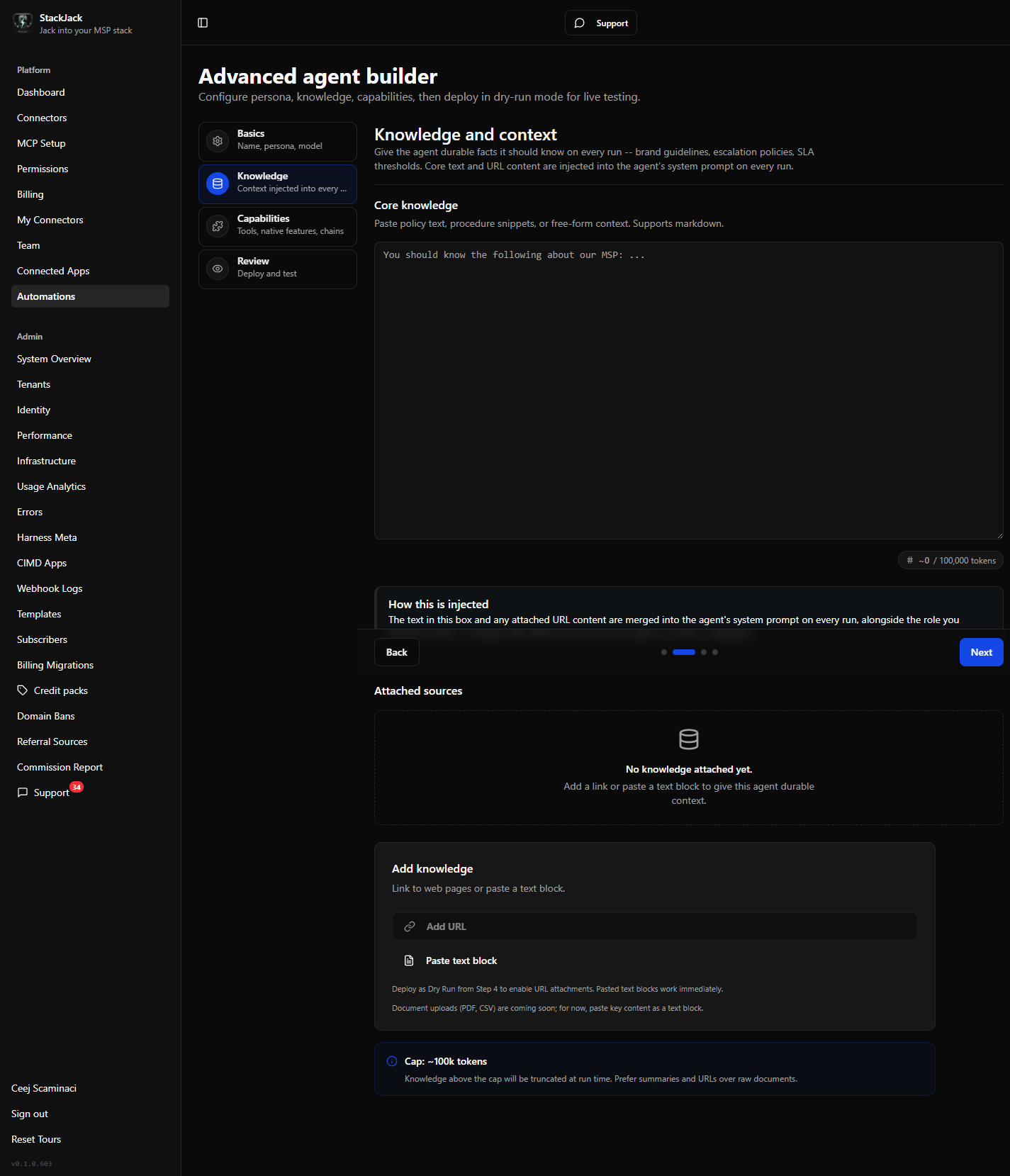 Builder Step 2 (Knowledge and context) showing the Core knowledge textarea with its live counter, the Attached sources list, and the Add knowledge card with Upload document, Add URL, and Paste text block buttons.
Core knowledge
The Core knowledge box is a free-form text area (Markdown supported) for the automation's primary reference material.
- A live character counter tracks the size of the core-knowledge box as you type. Your instructions and all attached knowledge together share one system prompt capped at about 100,000 characters.
- If that combined total goes over the cap, the automation is rejected when you save it — split or trim your sources, so prefer summaries and links over raw document dumps.
- Changes take effect the next time the automation is saved or deployed.
URL sources
Attach a web page and its extracted text becomes part of the automation's knowledge:
- In the Add knowledge card, click Add URL. (URL attachments require the automation to exist server-side first — if the button is disabled, deploy as Dry Run from Step 4, then come back.)
- Enter a Label (for example "Pricing page") and the URL.
- Click Preview to fetch the page and see its title, estimated tokens, and how many characters of text were extracted — a quick sanity check before committing.
- Click Attach.
How URL content behaves: the page is fetched once, when you attach it. The extracted text is then inlined into the automation's system prompt on every run — it is not automatically re-fetched. If the page changes and you want the automation to see the new version, delete the source and attach the URL again.
Pasted text blocks
For policy snippets and short references that don't live at a URL:
- Click Paste text block.
- Enter a Label and paste the content.
- Click Attach.
Text blocks work immediately, even before the automation is first deployed. One restriction: the label "Core Knowledge" is reserved for the core knowledge box above — a text block with that label (in any capitalization) is rejected.
Managing attached sources
The Attached sources list shows every knowledge source with its label and size. To remove one, use its delete action:
- For sources already saved to the server, the delete happens server-side first — if it fails, the source stays visible and you can retry, so the list never lies about what the automation will actually see.
Good practice
- Keep knowledge focused: the whole knowledge set is injected on every run, and bigger prompts cost more tokens (and therefore credits) per run.
- Prefer a short summary plus a URL over pasting a long document.
- Re-attach URL sources after meaningful changes to the underlying page.