Connect Pax8
Pax8 is a cloud distribution marketplace — partner billing, subscriptions, quoting, and vendor provisioning. Connecting Pax8 to StackJack lets your AI assistant work with your Pax8 partner data through MCP tools (MCP is the Model Context Protocol, the open standard AI assistants use to call external tools).
Once connected, your AI can work with companies and contacts, products and pricing, subscriptions, orders and invoices, usage summaries, and quotes — about 85 Pax8 tools in total, all named with the pax8_ prefix (for example pax8_list_subscriptions).
Before you begin
You'll need:
- A StackJack role that can manage connectors: Owner, co-owner, or Administrator.
- Access to the Pax8 developer portal at devx.pax8.com for your organization.
The same steps below are also shown inside the portal — open Connectors, find the Pax8 card, and click How To Connect.
Step 1 — Create an API Application in Pax8
- Go to the Pax8 developer portal (devx.pax8.com) and create a new API Application for your organization.
- Pax8 issues a Client ID and Client Secret for the application. The secret is shown only once — copy it immediately.
- Check which API surfaces your application can reach. Typical MSP partners get the standard partner surface (companies, subscriptions, quoting, billing). The vendor provisioning and vendor usage surfaces require separate Pax8 vendor onboarding — tools in those areas won't work without it.
Step 2 — Connect in StackJack
- In the StackJack portal, open Connectors from the sidebar.
- Find the Pax8 card and click Configure (or How To Connect first if you want the in-portal walkthrough).
- Fill in the form:
| Field | What to enter |
|---|---|
| Client ID | The Client ID from your Pax8 API Application. |
| Client Secret | The Client Secret from your Pax8 API Application. |
There is no URL field — the Pax8 API lives at a single global endpoint (https://api.pax8.com), shown as fixed text in the dialog.
- Click Save.
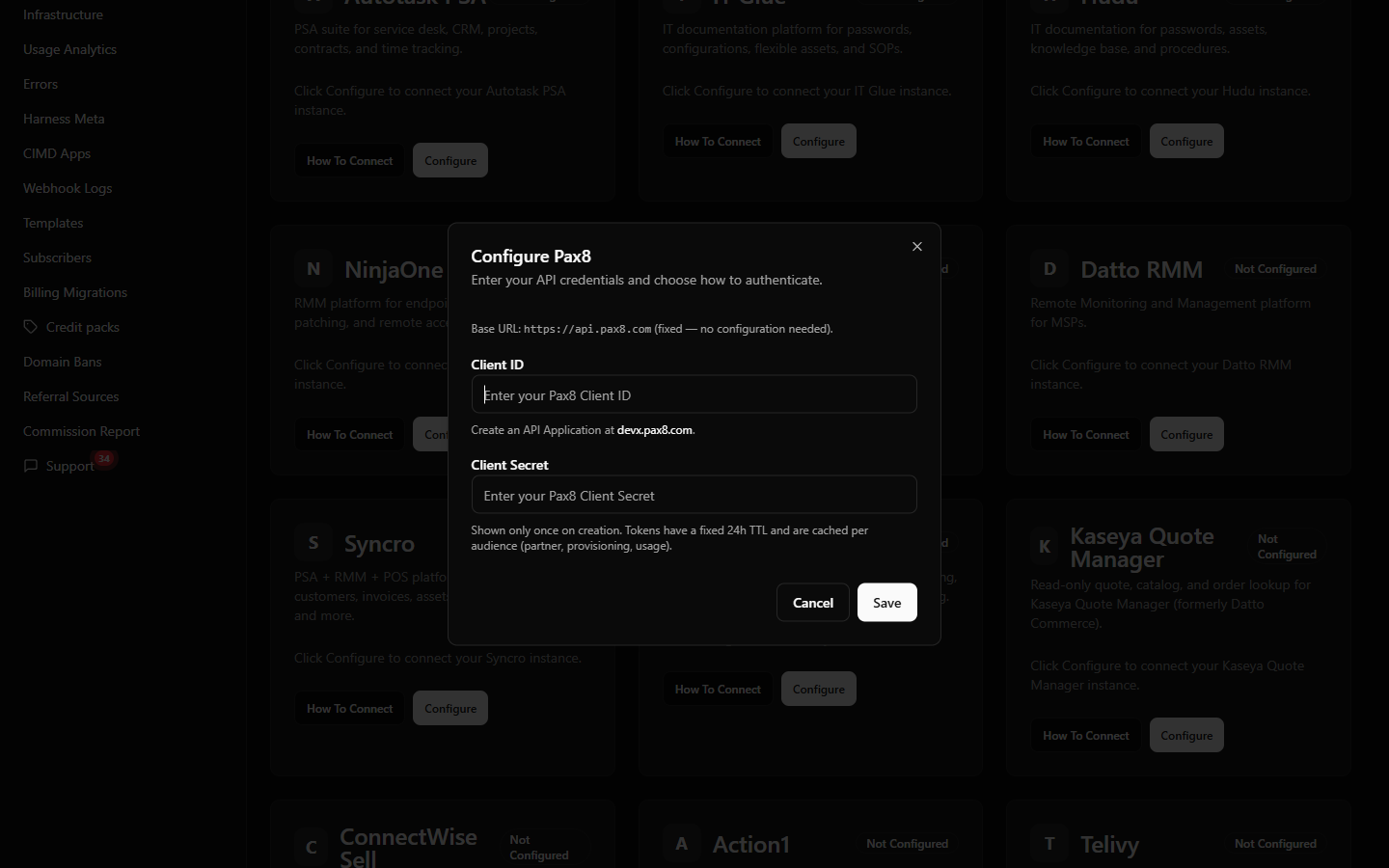 The Pax8 configure dialog on /connectors showing the fixed base URL note, Client ID filled, and Client Secret masked.
What happens when you save
- Your credentials are stored encrypted in a secure vault — they are never stored in StackJack's database and never shown again in the portal.
- A Free plan for Pax8 is activated automatically, so your AI can start calling Pax8 tools right away.
- StackJack immediately runs a live validation call against Pax8. If validation fails, your credentials are still saved — fix the underlying issue and click Re-test on the card.
- Behind the scenes, StackJack exchanges your Client ID and Secret for Pax8 access tokens automatically. Pax8 tokens last a fixed 24 hours; StackJack caches and renews them for you — you never manage tokens yourself.
Permissions and data access
The Pax8 API token represents a Pax8 user, so what your AI can see and change is governed by your Pax8 user's role and account permissions. If the user behind the API application lacks permission on an account, those endpoints return empty or filtered results rather than errors.
The Pax8 tool family spans these areas:
| Area | Access |
|---|---|
| Companies & Contacts | read/write |
| Products & Pricing | read |
| Subscriptions | read/write |
| Orders & Invoices | orders read/write, invoices read |
| Usage Summaries | read |
| Quotes | read/write |
| Quote Attachments & Preferences | read/write |
| Vendor Provisioning | read/write — requires the separate Pax8 vendor-provisioning onboarding |
| Vendor Usage | read/write — requires the separate Pax8 vendor-usage onboarding |
To see exactly which tools touch which areas — and to scope an AI client to a smaller tool set — open Permissions in the portal and select Pax8.
Note: Pax8 webhook tools are not available in this release.
Plans, tools, and usage limits
- Every Pax8 tool is available on the Free plan. Paid plans differ by monthly usage allowance, not by tool access. Upgrade from the Pax8 card on the Connectors page — current pricing is shown in the portal and at checkout.
- Each plan includes a monthly tool-call allowance; the usage bar on the connector card tracks it through your billing cycle. StackJack applies no per-minute rate limit of its own — the monthly allowance is the only StackJack-side cap.
- Pax8's API allows 1,000 successful calls per minute per client; exceeding it returns HTTP 429 until the window resets. StackJack paces its own Pax8 requests to keep your tenant under that limit.
Troubleshooting
| Symptom | Likely cause and fix |
|---|---|
| "Saved but validation failed" message | Credentials were stored but the live check failed. Double-check the Client ID and Secret (regenerate the application if the secret is lost), then click Re-test on the card. |
| Vendor provisioning / vendor usage tools fail | Your Pax8 organization hasn't completed the separate vendor onboarding for those API surfaces. Standard partner tools are unaffected. |
| Tools return empty results unexpectedly | Pax8 filters results by the API user's permissions on the account being queried — check that user's role in Pax8. |
| Connector suddenly shows as disabled | Three consecutive failed background checks auto-disable a connector, and the account owner is emailed. Fix the credentials, save, then Re-enable. |
Disconnecting
On the Pax8 card, click Disconnect and confirm. This deletes your stored credentials and stops all Pax8 tool calls.
⚠ Disconnecting does not cancel a paid Pax8 plan — billing continues until you cancel it separately. The Cancel Plan button only appears while the connector is connected, so cancel the plan before disconnecting. If you've already disconnected, save your credentials again to bring the plan controls back, then cancel.