Triggers: On-Demand and Scheduled
A trigger decides when an automation runs. Every automation has exactly one trigger type, chosen wherever you build or edit it (the New automation form, the Edit page, or Builder Step 1 — all three use the same trigger selector):
| Trigger | Runs when… | Typical use |
|---|---|---|
| On demand | You click Run now in the portal, or your external AI assistant invokes it. | Ad-hoc tasks, assistant-driven workflows. |
| Scheduled | A cron schedule fires. | Nightly summaries, weekly reports, recurring hygiene checks. |
| Webhook | An external system POSTs to the automation's unique URL. | PSA/RMM alerts, Zapier/n8n flows — see Webhook Triggers. |
Switching an automation's trigger type resets the trigger-specific settings, so re-check them before saving.
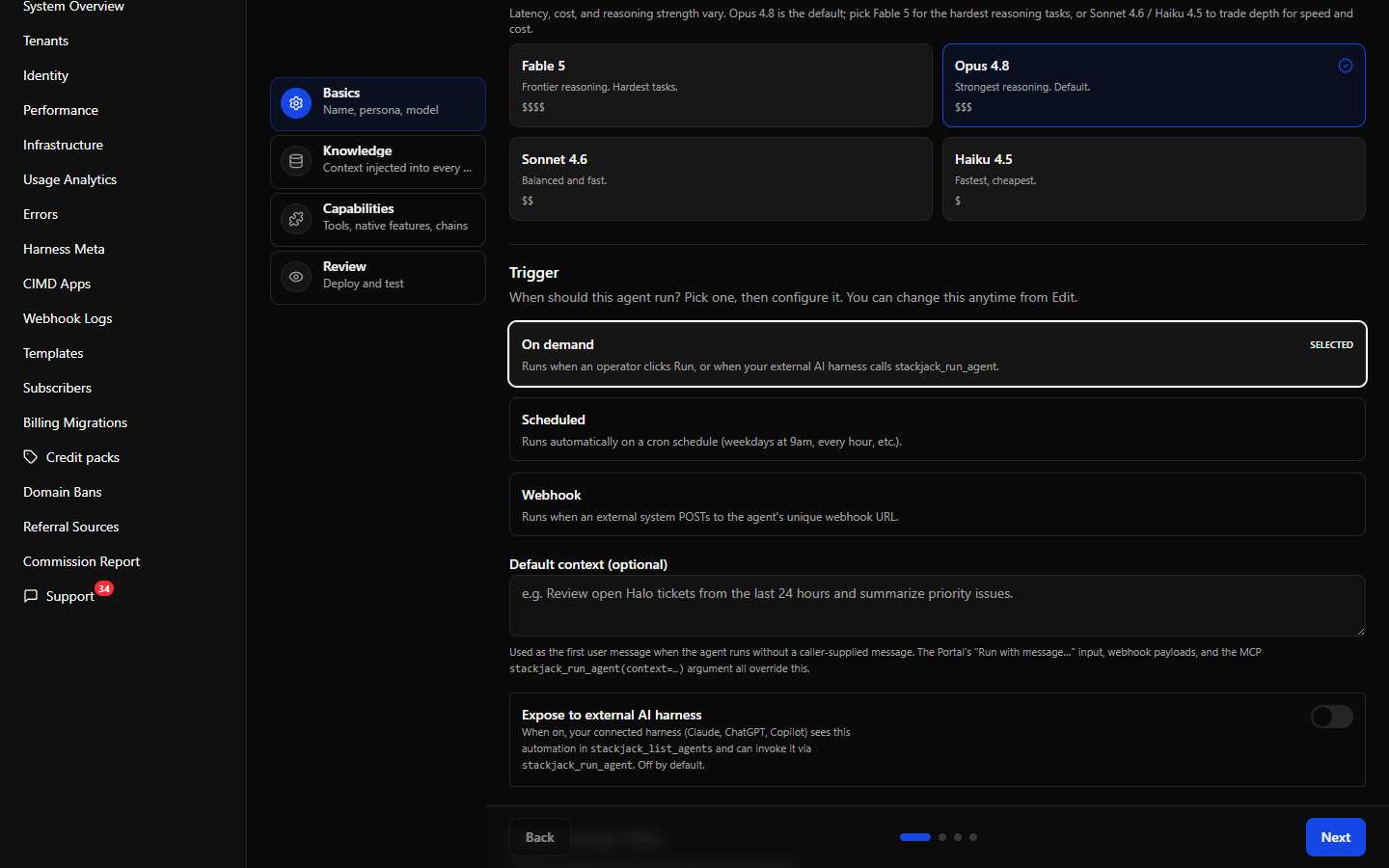 The trigger type selector showing the three trigger cards (On demand / Scheduled / Webhook).
On-demand automations
An on-demand automation runs when something explicitly asks it to. There are three ways that happens:
- Run now / Run with message… on the automation detail page.
- Your external AI assistant (an "MCP harness" — the AI tool you connected to StackJack, such as Claude, ChatGPT, or Copilot) calling the
stackjack_run_agentplatform tool — but only if you exposed the automation (see below). - Nothing else — on-demand automations never fire on their own.
Default context
The optional Default context text is used as the run's first user message whenever a run starts without a caller-supplied message. It is overridden by:
- the portal's Run with message… input,
- a message passed by your AI assistant via
stackjack_run_agent(context=…).
Exposing an automation to your AI assistant
The Expose to external AI harness switch (off by default) makes the automation visible to your connected AI assistant:
- When on, the assistant sees it in
stackjack_list_agentsand can start it withstackjack_run_agent. - Only on-demand automations can be exposed. If you change the trigger to Scheduled or Webhook, the flag is cleared automatically.
- The detail page shows an Exposed to MCP harness badge while this is active.
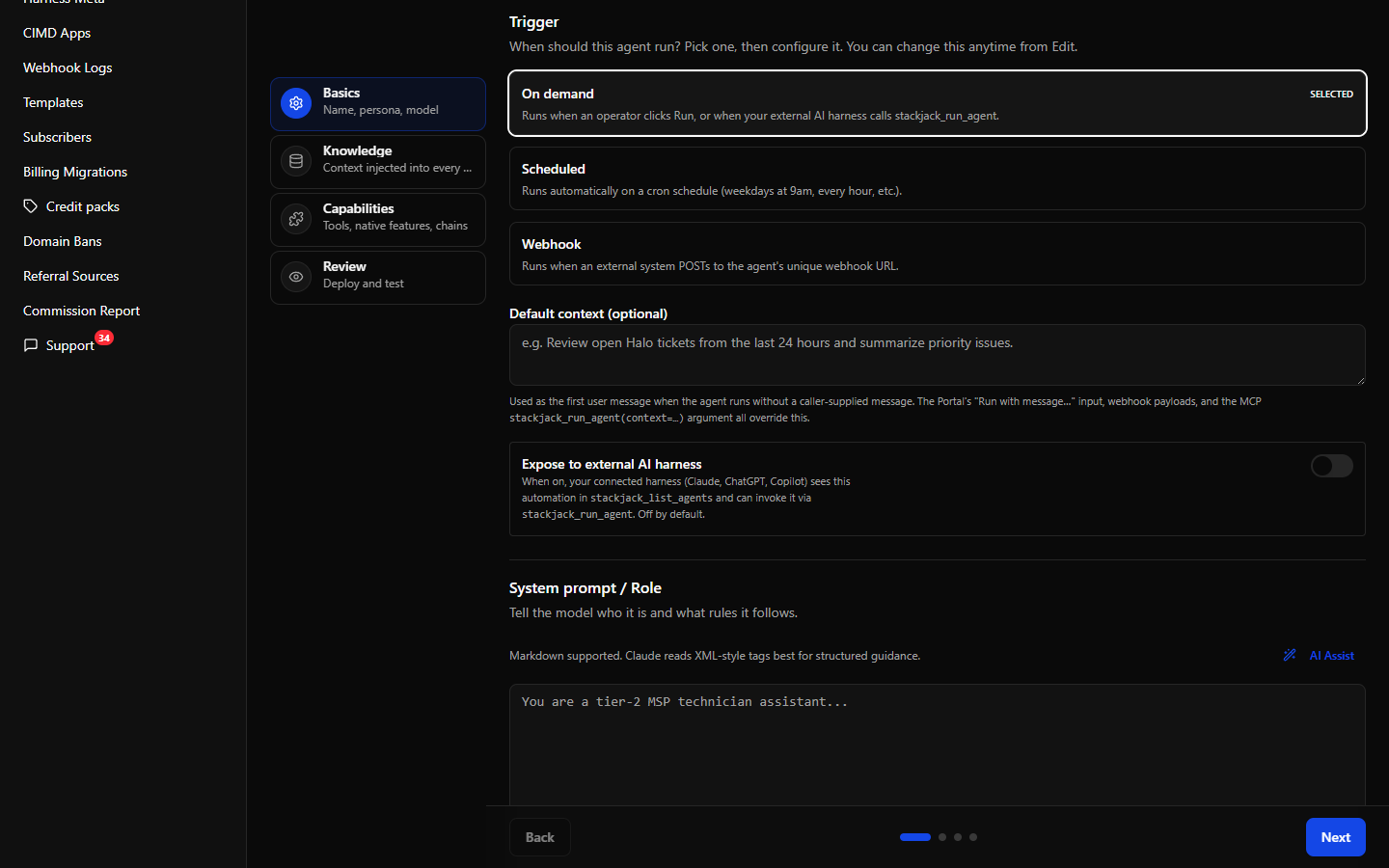 The On-demand trigger editor showing the Default context textarea and the "Expose to external AI harness" switch.
Scheduled automations
Scheduled automations run on a cron schedule (cron is the standard 5-field syntax for describing recurring times: minute, hour, day of month, month, day of week). The schedule editor has two modes:
Quick mode
- Pick the days of the week the automation should run.
- Enter the time of day in 24-hour
HH:mmformat (for example09:00). This is local time in the timezone you select. - Pick the timezone from the dropdown.
Quick mode synthesizes the cron expression for you.
Advanced mode (raw cron)
Enter a 5-field cron expression directly — for example 0 9 * * 1-5 (weekdays at 9 am). Use Advanced mode for schedules Quick mode can't express (every N hours, specific dates, ranges with steps). If an existing schedule is too complex for Quick mode to represent, the editor keeps it in Advanced mode rather than mangling it.
The preview panel
Below the editor, a live preview shows:
- validation errors, if the expression or time is invalid,
- the next fire times in UTC, so you can sanity-check the timezone math,
- the exact stored cron expression.
A mid-edit typo never silently destroys your schedule — the last valid schedule is preserved until you enter a new valid one.
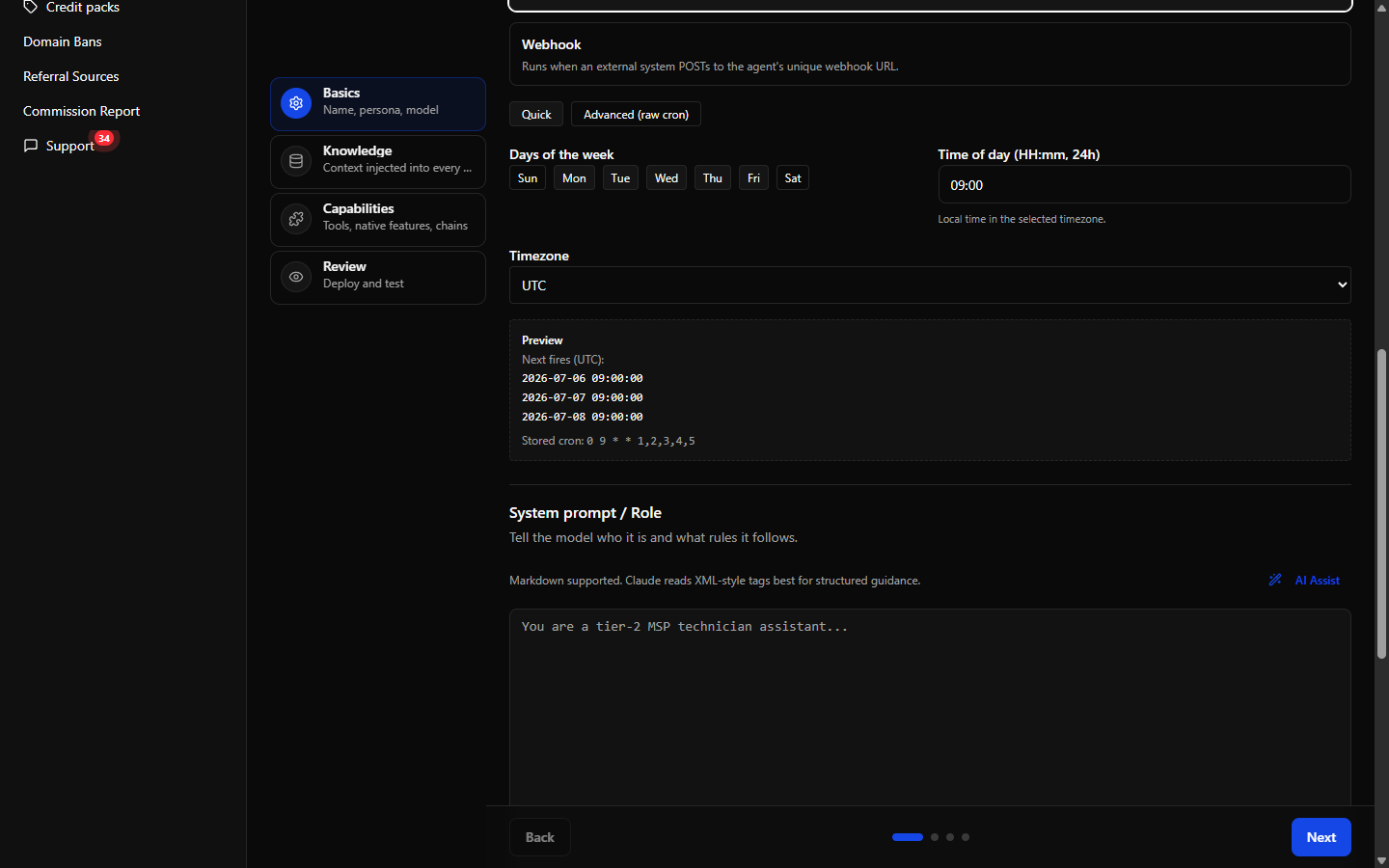 The Scheduled trigger editor in Quick mode with day buttons, time field, timezone dropdown, and the preview panel showing next fire times.
Rules and behavior to know
- Firings must be more than 60 seconds apart. Schedules tighter than that are rejected.
- Busy platform = skipped tick. If every agent execution slot is busy at the scheduled minute, that tick is skipped — recorded as a Skipped run in the automation's history so you can see it happened — and the schedule simply fires again at its next occurrence. Treat schedules as "best effort at the scheduled minute."
- Next run and registration state are visible on the automation detail page. The schedule-registration row on the detail page tells you authoritatively whether the schedule is registered with the background scheduler; if it reads Not registered, use Re-register schedule.
- Schedule drift banners appear when the registered schedule and the saved configuration disagree; active scheduled automations can usually be repaired with one click.
What about approvals during a run?
Automations run autonomously: whatever tools you allow, the agent may use without asking. There is no human-in-the-loop approval step today, so build the allow-list accordingly — grant only the tools the automation genuinely needs, and use Dry run mode while testing. Human-in-the-loop approvals (pause a run for a person to approve a tool call) are coming soon; see Run Detail for how paused runs behave today.