AI Governance Exposure scan.
A scan reads a company’s Microsoft 365 settings, licenses, usage and audit log, scores its exposure to AI and writes a report under your name. It needs no install and changes no setting.
Walk into the meeting
with their own numbers.
A company rarely knows how far AI already reaches into its tenant. Show it, with the company’s permission and a report under your name. The scan works for a client you already serve and for a company that is not a client yet, and a later scan shows what changed since the baseline.


Everything AI can reach,
in one scan.
Copilot, AI apps, agents, the data AI can reach, identity controls, desktop AI, and what nobody can see. The same scan works for your own organization, a client you already serve and a company that is not a client yet.
| Area | What the scan reads |
|---|---|
| Microsoft 365 Copilot and Microsoft AI | Copilot seats bought and assigned, how many people used Copilot and in which apps, and from the audit log how many people used Copilot and free Copilot Chat. |
| AI apps connected to the company | The AI apps approved in Microsoft 365, what each can reach, whether it works with nobody signed in, and the AI keys and accounts in the vendor connections you choose. |
| The data AI can reach | Whether files can be shared with anyone, how many files and sites there are, guests, public groups and teams, and whether any sensitivity label exists. |
| Identity and access controls | Who may connect apps, the admin consent workflow, Conditional Access, security defaults, MFA registration, how many Global Administrators there are, and Secure Score. |
| AI agents and automation | AI agents with their own identity in the directory, and agents people used. Each agent shows by its real name, with who used it. |
| Company computers and desktop AI | AI desktop apps Microsoft Intune found, the number of managed computers, and the AI services and apps Microsoft Defender saw on company computers. |
| What nobody can see | The Microsoft products the organization does not own, and what that hides from it and from you. |
The scan can also read which AI sites staff reached through Microsoft Entra Internet Access (Global Secure Access), counted for each site, only when the organization uses that product. It reads no address, no prompt and no answer, and it keeps no person or computer.
What it never reads or keeps
- It never reads message text, prompts, answers, file contents or mail.
- On the pseudonymous name policy, the default in the EU and the UK, it stores no person: no name, no account and no client IP address.
- It stores no secret from a vendor, and it changes no setting in Microsoft 365 or in any vendor account.
The scan leaves one trace: an audit log search named StackJack exposure scan, visible in the organization’s Microsoft Purview audit search list. Microsoft keeps a finished search for 30 days.
Two scores, never one
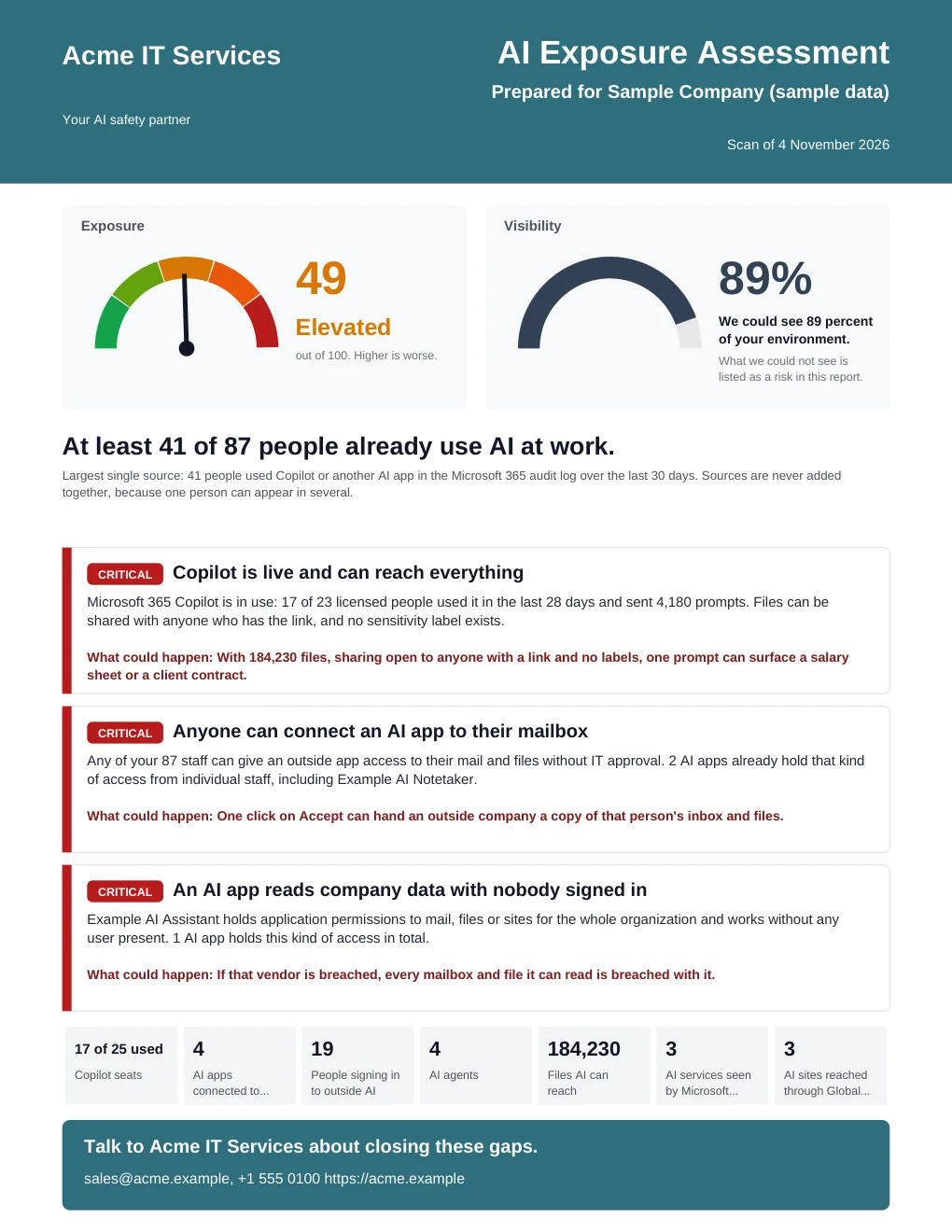
The exposure score runs from 0 to 100, higher is worse, and comes only from what was found: Low, Guarded, Elevated, High or Severe. The visibility score says how much of the environment the scan could see. Approving less lowers visibility and never changes exposure.
A figure that was not read says Not checked, never zero. The headline names the largest single source and never adds sources together, so the real number can only be higher.
Fixed rules set severity
Severity comes from fixed rules, not from a model: Critical, High, Medium, Low and Info. Each finding says what was found, what could happen and how to fix it, with its evidence. A part that could not be read can never make a finding worse.
Unused paid Copilot licenses show as a cost, never as a risk.
A PDF under your own name
The first page is always one page: your logo and colors, the two scores, the headline, the three worst findings, the key numbers and your contact details. Then one or more pages for each area, what changed since the baseline, and how you close the gaps with StackJack.
It names names. The report shows who connected each AI app, which administrators have no MFA, who used Copilot with no paid seat, which seats nobody uses, and the person and resource behind each Copilot prompt injection detection.
StackJack keeps no copy of the PDF. It makes the report when you ask. Present to the client opens the same report full screen in your signed-in session. It is never a public link.
A company outside your account
Send the company’s Microsoft 365 administrator a consent link. They need no StackJack account. The link works once, expires in 72 hours, and connects Microsoft 365 for that one organization only.
Every permission is read-only. The scan asks for none that changes anything, and none that reads mail, files or chats.
A baseline and what changed
The first scan that read everything it was asked to read becomes the baseline. Later scans are compared with it: what was added, removed and changed. A part that could not be compared is listed, so a failed read is never shown as something removed.
Your report branding (logo, colors, company name and contact details) is yours and applies to every report.
Scan a company
that is not a client yet.
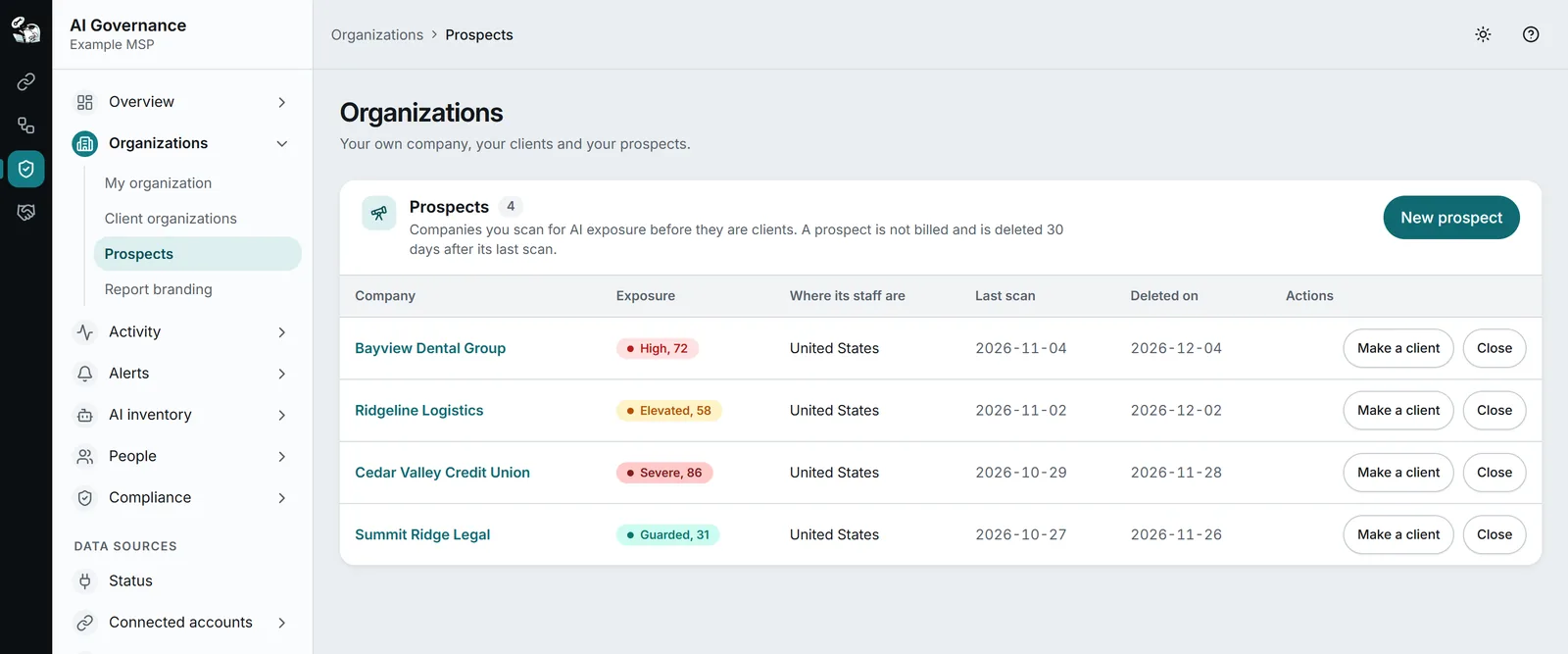
A prospect is a company that is not a client yet. You scan it for AI exposure and show it where it stands, with a report under your own name. You do not need one to use AI Governance: your own organization and the clients you already have work from the first day.
Held apart from your clients
A prospect has a name and a place, and can be scanned. It has no staff, no sources, no rules and no roles. Nothing is collected from it except by a scan.
It does not count toward your client limit, and it does not appear in All clients. You hold at most 20 open prospects at a time.
A prospect is never billed. An administrator of your whole account adds and scans prospects.
Gone 30 days after the last scan
A prospect and everything its scans found are deleted 30 days after its last scan, or 30 days after it was added if it was never scanned. Scanning it again starts the 30 days over. The row shows the date it will be deleted.
Close a prospect yourself at any time: its name is replaced, and its scans, findings, consent links and any key added only for its scan are deleted. A closed prospect cannot be reopened.
Make a client
The prospect becomes a client organization. It keeps its scans and its baseline, so you can show what changed since you first looked, and it keeps its Microsoft 365 connection, so nobody consents twice.
It then counts toward your client limit and is no longer deleted automatically.
See the AI a prospect’s own staff use
A watch sweep puts the browser extension and the Windows endpoint agent on a prospect’s computers for 7, 14 or 30 days, in watch mode only. They count the AI apps and AI sites in use. They block nothing, show no warning, keep no text and mask nothing, and the report names no person and no computer.
You first tick that the company agreed in writing and its staff were told, and type your name. StackJack stores that sentence, your name and the date. For staff in the EU or the UK, their staff notice must be recorded first. A sweep is never billed. It ends by itself, or when you select End now, and then every key it issued stops working.
A prospect with a running sweep is never deleted. The 30 days count from the end of the sweep when that is later than the last scan.
Questions.
Do I have to prospect anyone to use AI Governance?
No. It works on your own organization and on the clients you already have, from the first day. The scan is the same for all of them: your own organization on every plan, and a client or a prospect on Pro or higher. A prospect is a company that is not a client yet. It is never billed, and when you make it a client it keeps its scans and its baseline.
Is a prospect billed, and how long is it kept?
A prospect is not billed. It is deleted 30 days after its last scan, or 30 days after you added it if it was never scanned, or when you close it.
Do I have to install anything?
Not for the scan, and not for most sources, which use connections and keys you already have. The browser extension and the Windows endpoint agent are there for those who need to see more.
Keep reading.
For depth, in the docs: Exposure scan · Prospects
Know what AI is doing.
AI Governance is in public beta. Start free, add one source, and see which AI tools your people use.