AI Governance Every client, one place.
Add a client once. After that, StackJack keeps reading its sources, raising findings and sending alerts, and one table tells you which client needs you today.
Every client.
One place to look.
Add a client once. After that, StackJack keeps reading its sources, raising findings and sending alerts, and one table tells you which client needs you today.
Sources keep reporting
Each client’s staff list comes from its own Microsoft 365 directory, and vendor sources read on a schedule. A source that stops reporting shows up in the table, and a client below full set-up counts as needing you.
Alerts where you already work
Send alerts to your PSA ticket queue, Microsoft Teams, Slack or a signed webhook. Business adds Microsoft Sentinel, Splunk, syslog and OpenTelemetry. Work many alerts at once from the inbox.
One incident rule, every client
An incident rule opens incidents automatically from findings, alerts or AI activity. Apply it to one organization or to every organization you govern.
Through the RMM you connected
StackJack delivers settings files to staff machines through the remote management tool you already connected. Pick a tool, an operating system and a machine group, and each run shows its result.
Each client sees only its own
Invite a client’s administrator, reviewer or auditor to its one organization. They see that client and nothing else of your account.
Ask the AI you already use
Read and decide from the AI tool you already use, through StackJack’s own governance tools, without opening the Portal.
Put AI in place at a client, and keep it that way
Write the AI set-up you want once, as a standard. StackJack reads a client, shows what the standard would change, and makes the change only after the right person approves it. Later it tells you when a setting drifts and can put it back. Start from ready-made standards for Microsoft 365 Copilot set-up, Copilot secure and govern, and Purview. See who holds each AI seat and what it costs, take back seats nobody uses, and buy seats through your distributor after approval. Every client on one screen, with a record you can hand to the client.
One account.
A separate organization for each client.
A client organization is one of your clients, set up inside your own AI Governance account. Each keeps its own people, rules, roles and records apart from your own and from every other client.
What each client has
- A staff list, read from the client’s own Microsoft 365 directory.
- Its own rules and client names dictionary.
- Its own sources, so a client’s AI use is counted for that client alone.
- Its own roles, audit view, staff notice and name policy.
- A place (United States, European Union, United Kingdom or somewhere else) that sets the staff-name default and which AI judgments need an opt-in.
The MSP home page
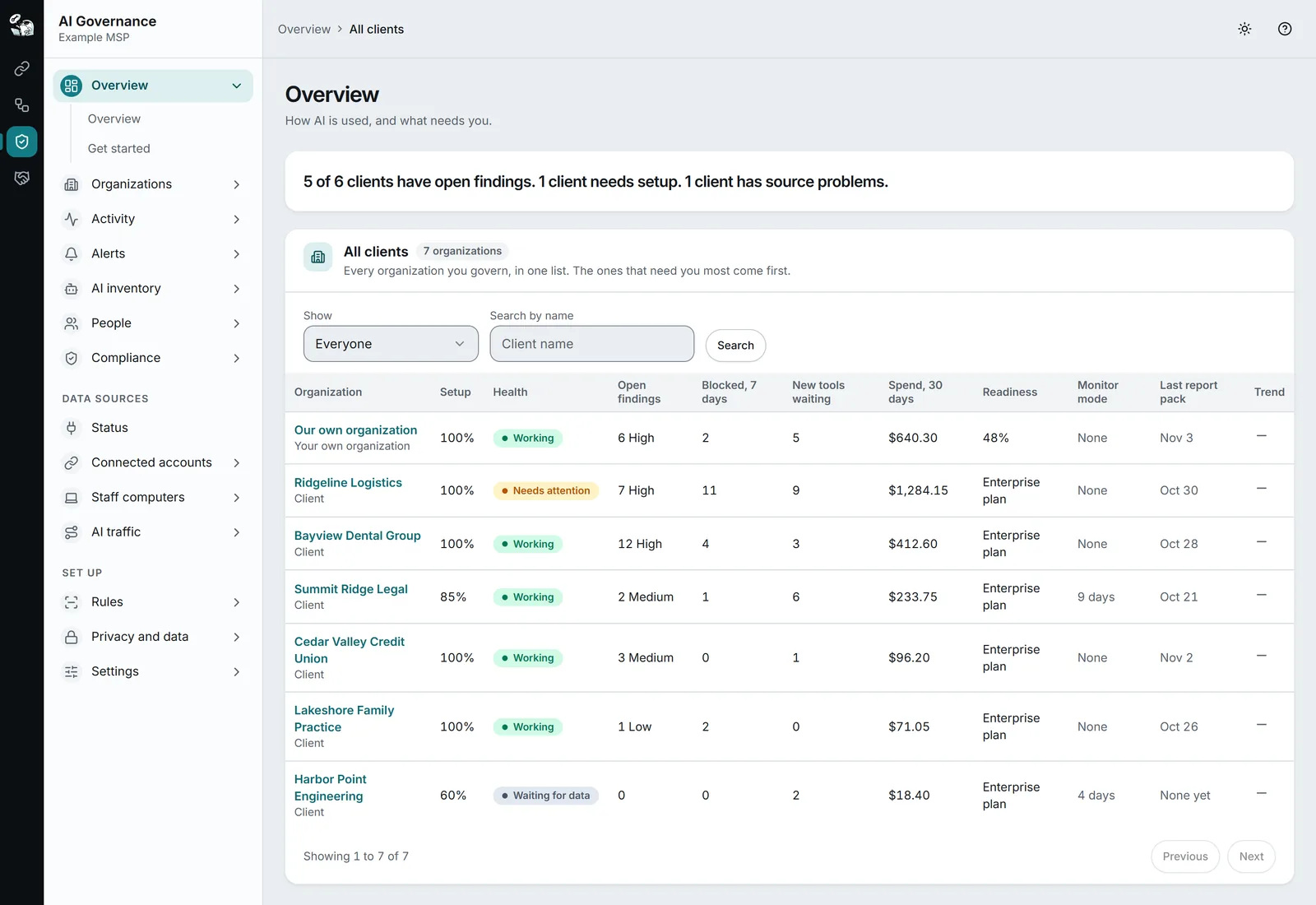
One row for each organization you govern, the ones that need you most first: set-up progress, health, open findings, blocked prompts, new tools, spend, monitor days, last report pack and a trend. A click opens that client’s Overview.
Readiness for each client is on Business and higher.
Invite a client to see its own organization
Invite a person from a client, or an adviser who works for it, as administrator, reviewer, reveal approver or auditor of that one client organization. They see that client and nothing else of your account. The invitation link works only for the address it was sent to.
Nothing collected until you add a source
A new client organization starts with nothing switched on. For each client you add sources, such as the client’s own Microsoft 365 connection, which the client’s own Global Administrator or Privileged Role Administrator completes.
A stated day for removal
Closing switches off every source at once. On a removal day shown in the dialog, StackJack removes the client’s staff, facts, findings, rules and settings. It keeps the audit trail, the report packs, the record of who held roles and the billing history. With the client’s own storage as its main store, StackJack keeps a report pack file for 90 days. An older file is only in that storage: it stays there, and StackJack can no longer read it for you after the removal day. A legal hold stops the removal until it is released.
Charged apart from your staff
Client organizations have their own charges on top of your plan: $29 a month for each active client organization on Pro or $49 a month on Business, and the client’s stored text at $1 per GB a month from the first GB. There is no fee for each person in a client organization, and a client’s people never count toward the staff included in your plan.
Questions.
Is AI Governance part of my connector subscriptions?
No. It is billed on its own, with its own invoice and billing date. Anthropic Admin, OpenAI Admin and GitHub Copilot are included with a paid AI Governance plan. Client organizations are charged apart from your plan: see the plans on the overview.
Does a client see the rest of my account?
No. Invite a client’s administrator, reviewer or auditor to its one organization. They see that client and nothing else of your account.
Keep reading.
For depth, in the docs: Client organizations · All clients
Know what AI is doing.
AI Governance is in public beta. Start free, add one source, and see which AI tools your people use.